
Start at the machine before the first file opens
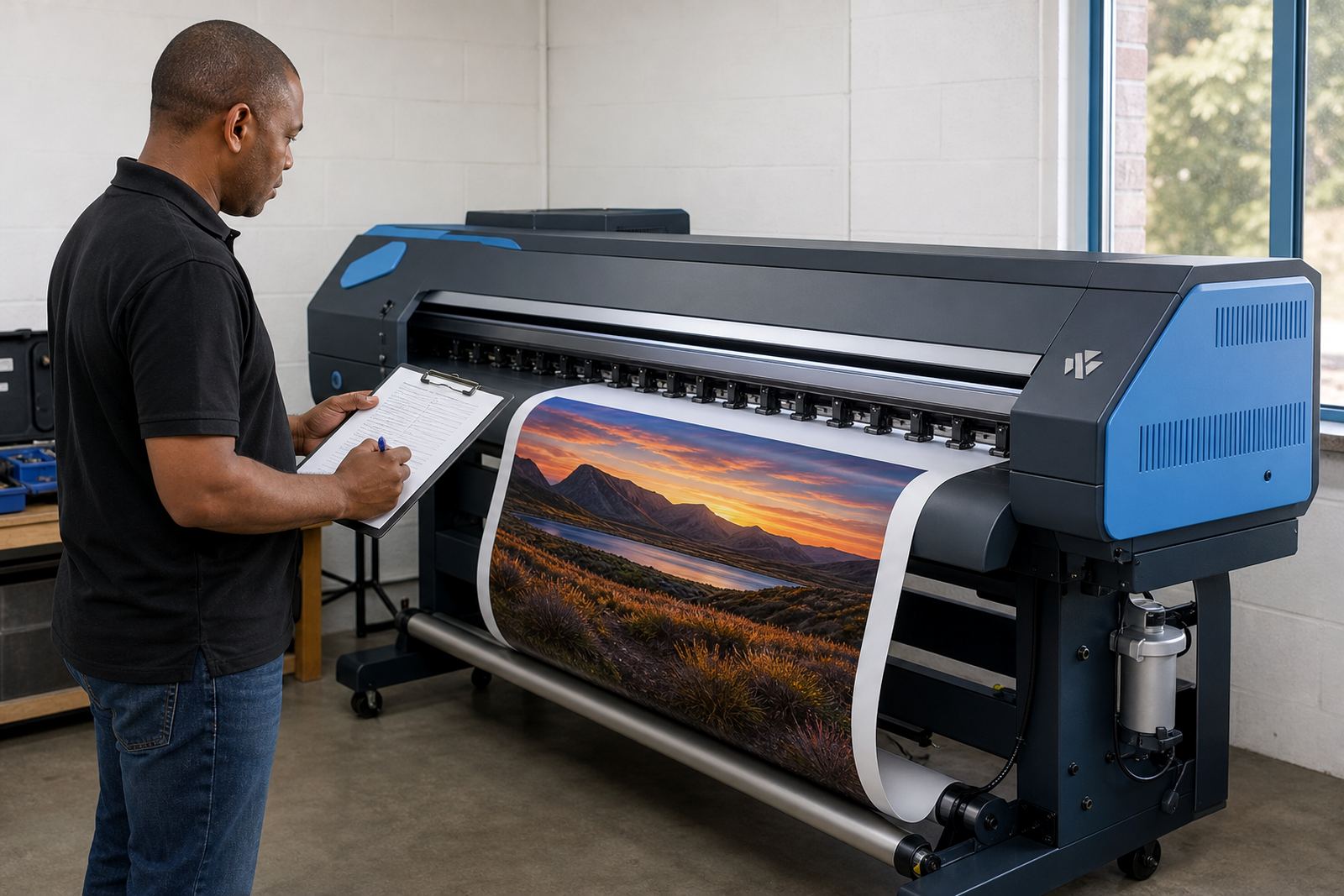
Begin with a quick walk around the printer and control station. Look for loose cables, warning lights, ink spills, media offcuts, and anything that could upset the first run. In humid coastal conditions, or after a dusty night in Gauteng, small issues can show up before the first job is loaded.
Use the same order each morning so nothing gets skipped when the shop is busy. A short routine is easier to keep than a long one, and it helps the operator notice changes in sound, heat or movement early.
- Check the control board status lights and screen messages.
- Confirm the RIP workstation is powered, logged in and ready.
- Inspect media paths, platen areas and take-up parts.
- Look for dried ink, dust, or damaged connectors.
Set the RIP session before queueing work
Open the RIP software and confirm the correct printer queue is selected. Match the active media profile to the job, the ink set and the printer mode being used. If the wrong queue is left active from the previous shift, the first print can carry the wrong size, density or pass count.
Check that nesting rules, tiling settings and copies are set for the day’s mix of work. A few minutes spent here can save metres of media and keep the cutter, laminator and finishing table from receiving mismatched output.
- Load the intended colour profile for the media type.
- Confirm resolution, pass count and ink limits.
- Review nesting spacing and rotate settings.
- Clear old jobs that should not print.
Confirm board communication and printhead driver settings
Printer control boards and printhead drivers need stable communication before the first job starts. If the board is slow to recognise the printer, or a driver setting changed during maintenance, nozzles can fire incorrectly or a head may not fire at all. That sort of fault often shows up as banding, missing colour channels, or uneven coverage on the first test.
Run a basic test pattern and compare it with the previous day’s result. If the pattern changes, check the board links, head configuration and cable seating before production starts. Do not push full production through a system that is already showing signs of instability.
- Verify the board has loaded the correct printer model settings.
- Check head mapping and channel assignment.
- Print a nozzle or test pattern where available.
- Note any missing lines, streaks or timing errors.
Watch colour before the first saleable sheet leaves the printer
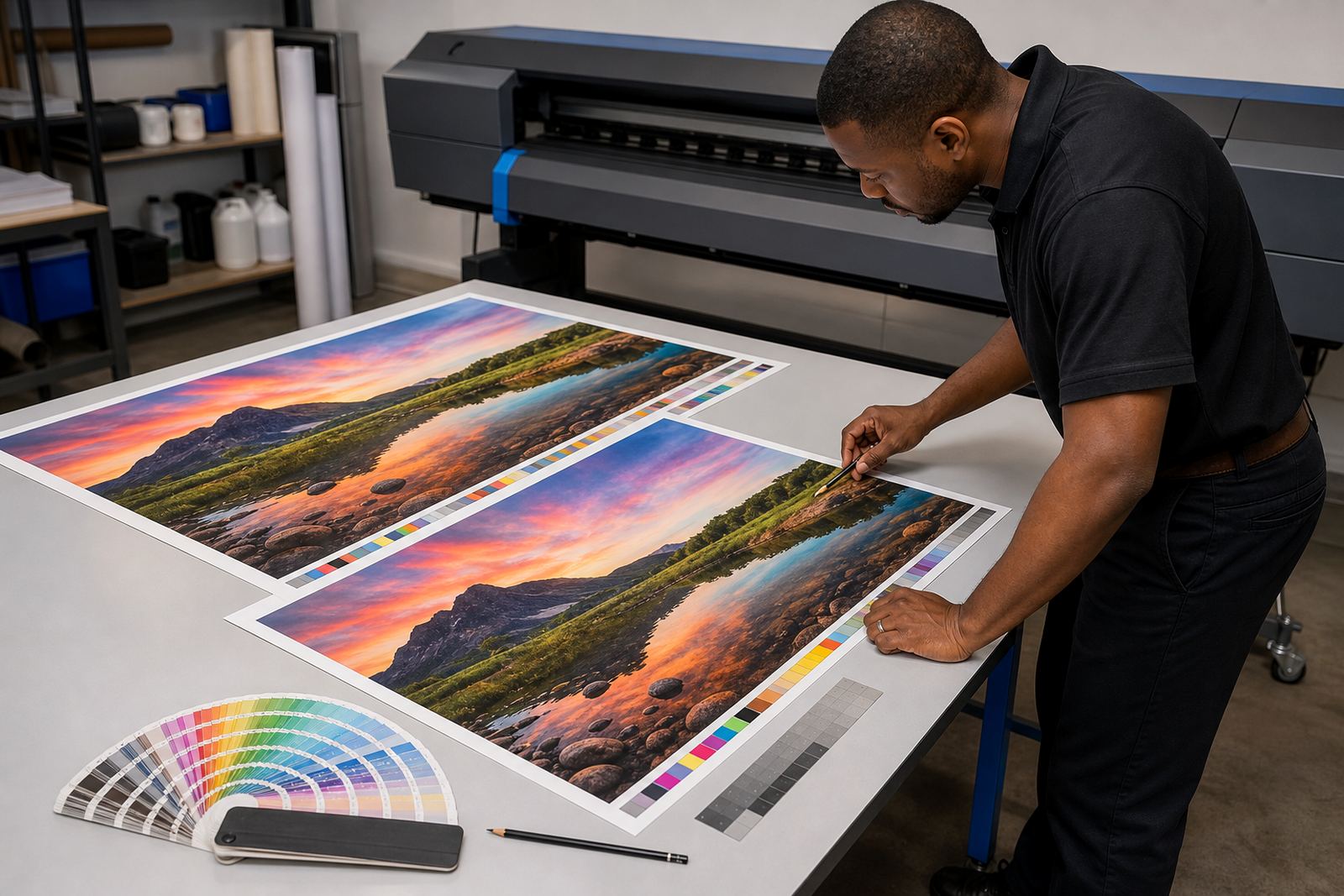
Colour workflow needs attention early in the day, especially where designers expect tight brand matches. A profile that worked yesterday can still drift if media, humidity or ink behaviour changes. Keep a calibrated proof or reference print near the station so the operator can compare it before the production queue builds up.
Review the first colour bars, solids and gradients on the day’s test strip. If density looks thin, black looks muddy, or skin tones shift, pause and adjust the profile or ink limits. Small corrections at this point are easier than reprinting a full job later.
- Check the active ICC or device profile.
- Inspect greys, blacks and solids for balance.
- Confirm the same profile is used on reprints.
- Keep a reference print with the normal output.
Clear the queue and prepare the operator station
Before jobs move into production, make sure the queue is ordered correctly and the filenames are clear. Mixed artwork, duplicate versions and old test files can waste time at the printer. The operator should know which file is urgent, which one is a sample, and which one still needs approval.
A neat queue also helps when several sites or departments are sending work into one shop. In Johannesburg, Pretoria or Cape Town, it is common for more than one person to feed files into the same RIP system and that is where confusion starts if naming is loose.
- Remove outdated proofs and duplicate files.
- Compare print order with the schedule.
- Confirm media width and tile size.
- Mark files that need special finishing.
Finish the morning with a short maintenance pass
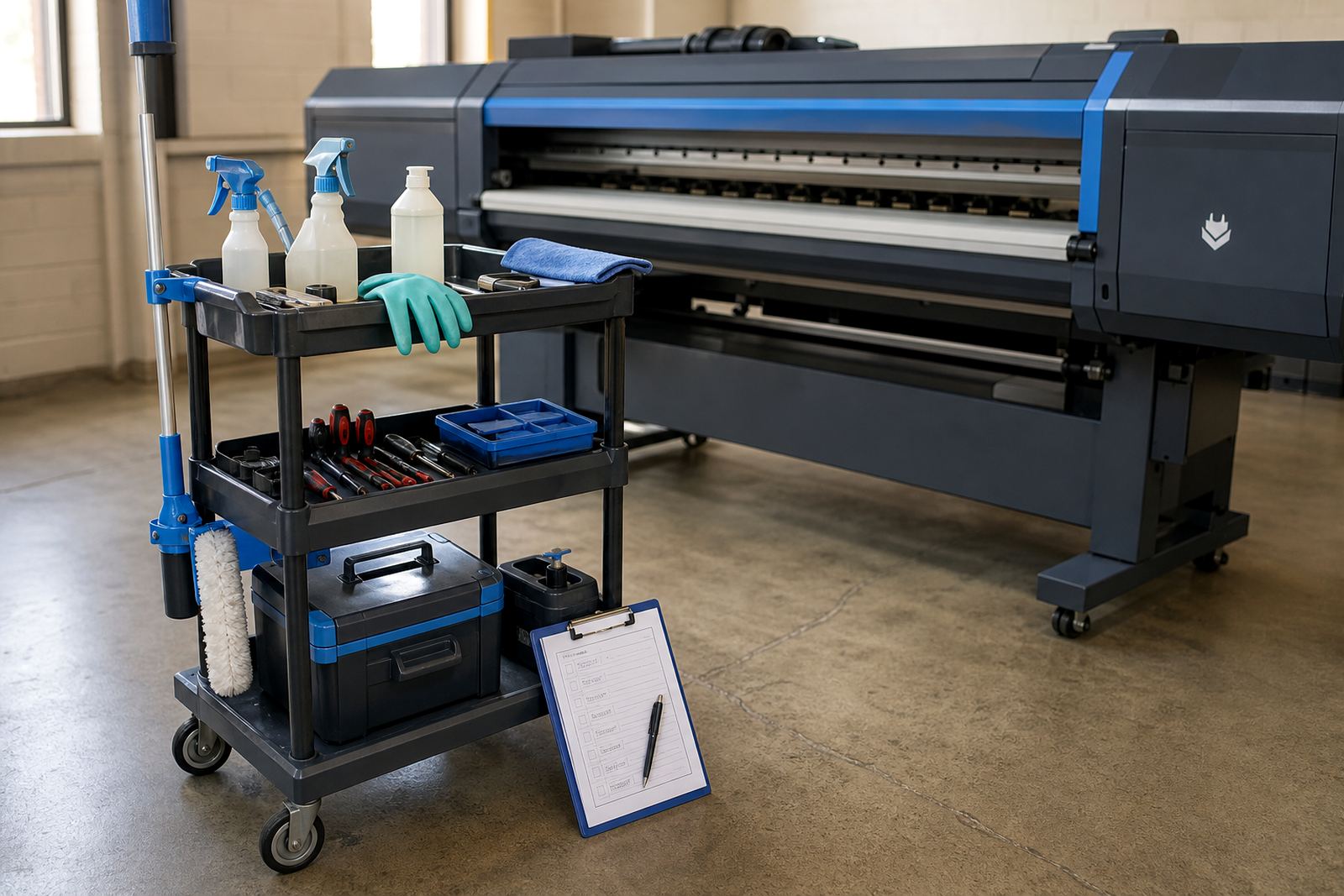
Once the first few jobs are running properly, take a minute for preventive maintenance. Wipe the obvious dust, empty waste where needed, and note any recurring fault messages. Do not wait for a failure to decide that a small fault matters. In wide-format production, a minor issue left alone can interrupt the full shift.
If a board has been repaired, a profile changed or a driver updated, record it in the day book or service log. That note helps the next operator understand what changed, and it gives the support team a cleaner starting point if remote help is needed later.
- Record test results and any faults seen.
- Note maintenance carried out before production.
- Save backup copies of working settings.
- Keep the operator log close to the RIP station.