
Start with the same file, the same RIP path, the same board
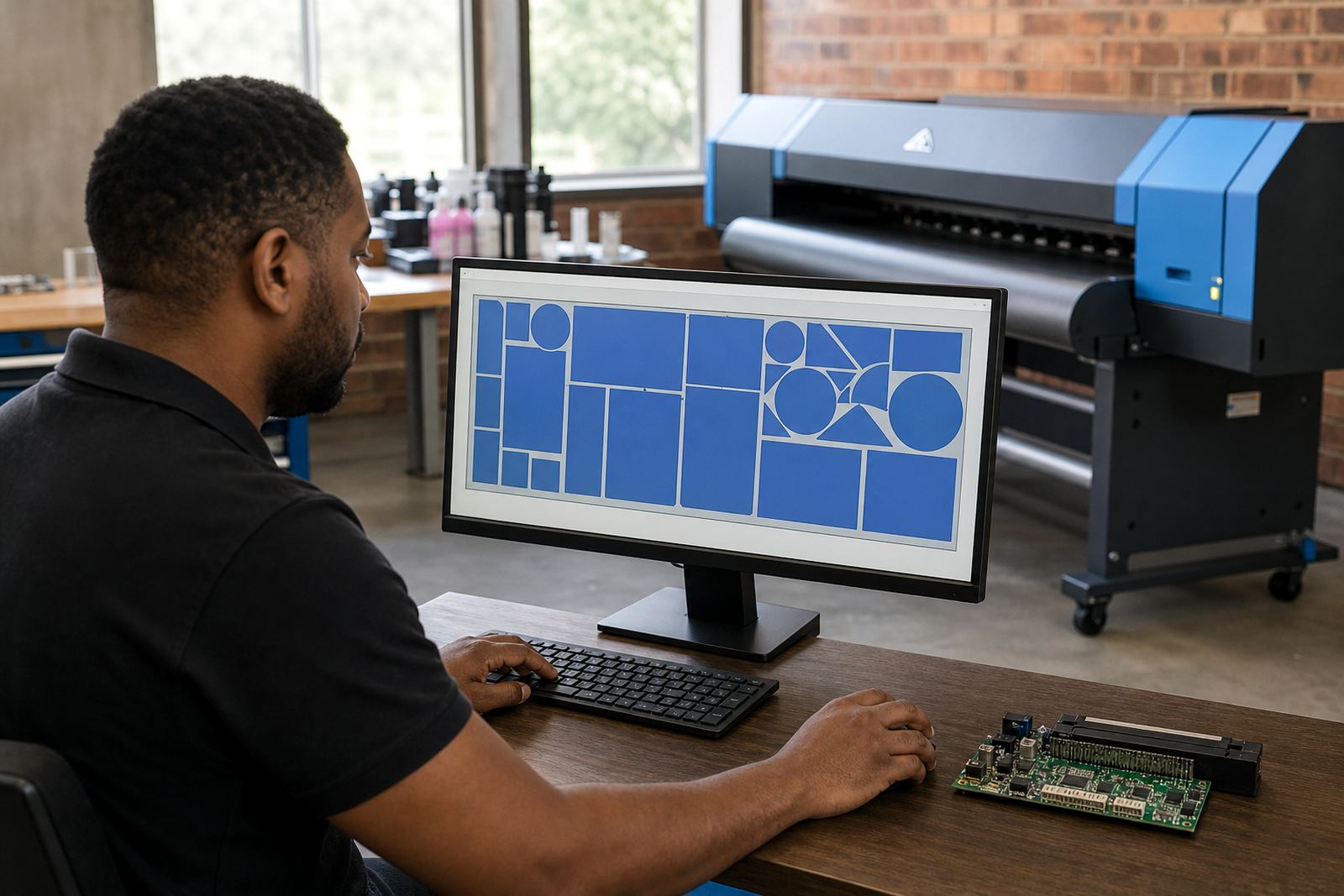
Colour consistency starts before ink reaches the media. If the file changes, the profile changes, or the RIP queue is set differently, the print can shift even when the artwork looks identical on screen. Keep one master file, one approved output path and one named job preset for repeat work. That matters on banners for Sandton, fleet graphics in Pretoria, and display work moving between a shop floor in Midrand and a site in Durban where humidity changes through the day.
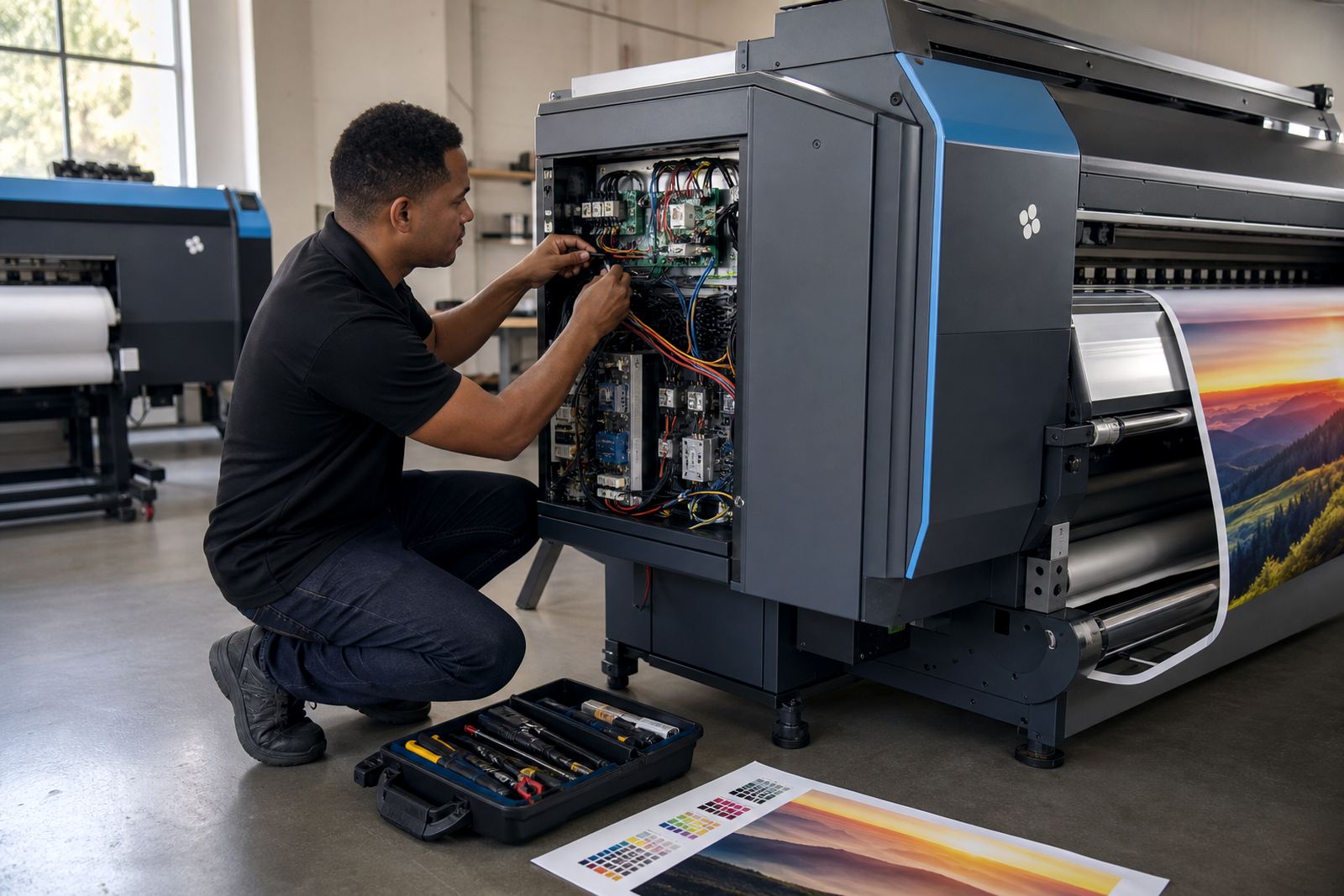
Control boards and printhead drivers must also be steady. A board that is not driving the heads evenly, or a driver setup that has been altered after fault finding, can change dot placement and weaken colour builds. If a printer is repaired, cleanly reinstall the working board settings, then print a standard test image before the next customer job. Small changes in head timing, ink limits or pass count can show up as banding, lighter solids or a cooler skin tone.
- Use one approved artwork version for repeats
- Keep job names consistent in the RIP queue
- Lock the print mode, pass count and media profile
- Check board and driver settings after repairs
Build a colour baseline that suits the material
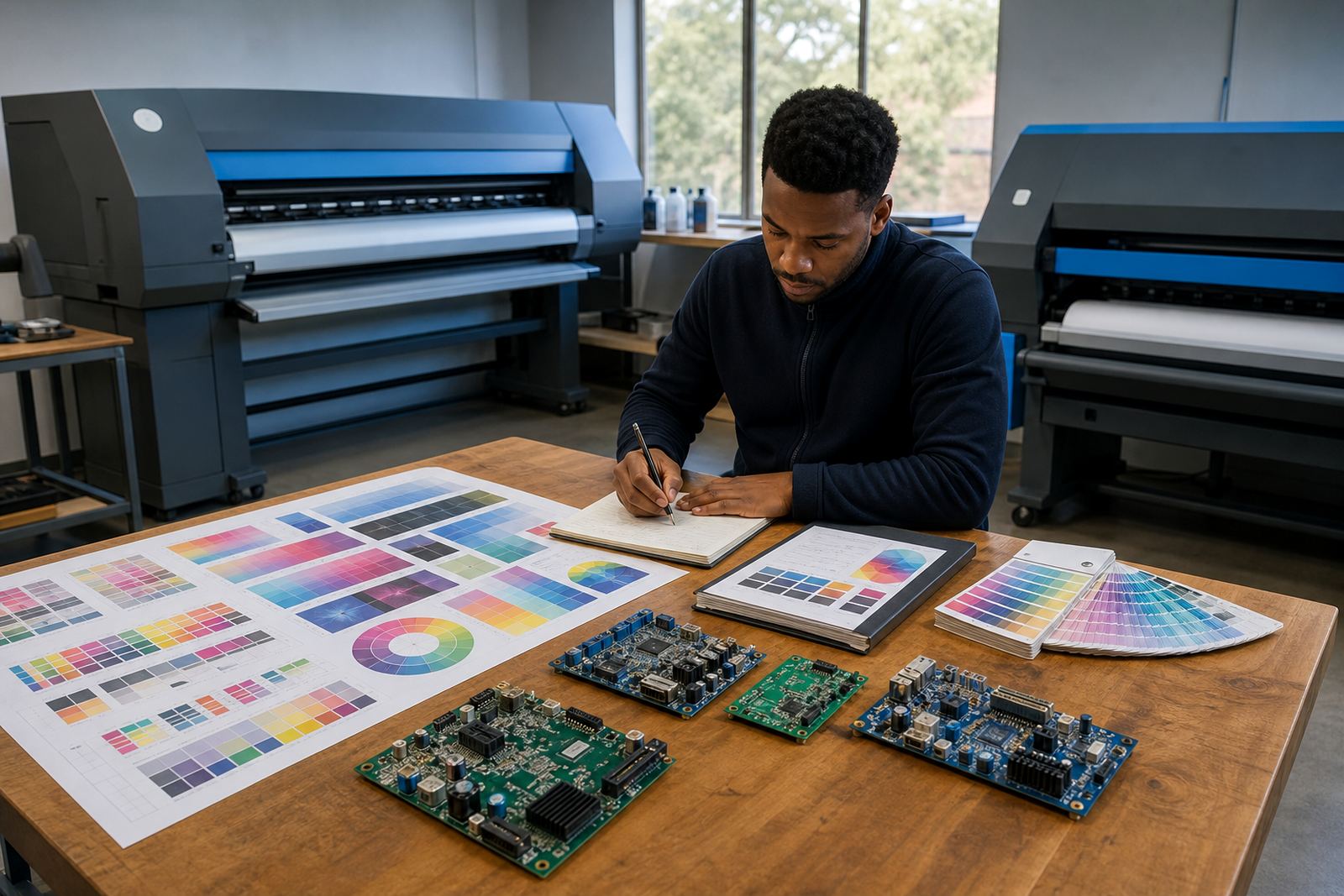
Every substrate behaves differently. Gloss vinyl, matt self-adhesive film, coated paper, backlit material and canvas all take ink at a different rate. A profile that works well on one may oversaturate another, especially on lighter stocks or where the coating is uneven. For repeat work, print a reference target on the exact material, under the same settings and drying conditions you will use for the job.
In practice, the best baseline is not only about colour patches. It also includes solid fills, greys, skin tones, fine text and a gradient. That makes it easier to catch a problem that only shows up in production, such as a magenta cast in neutral greys or a muddy shadow area. If a shop runs jobs in Cape Town, the marine air can affect drying differently to a dry inland site, so keep local conditions in mind when comparing samples.
- Match the substrate, not just the artwork
- Print a full target with solids, greys and gradients
- Let samples dry before comparing them
- Keep reference prints flat and out of direct sun
Use profiles as working tools, not decoration
Colour profiles only help when they are tied to the real print condition. That means the correct ink set, media type, resolution and drying assumption. If a profile was made for a fast production pass, it may not suit a higher quality pass, and the colour will shift even if the file is unchanged. The same applies when a print shop changes media suppliers or moves a job from indoor signage to outdoor use.
Profile setup should also reflect how the RIP handles black generation, ink limits and grey balance. A strong black point can help text and line work on banners, but too much black can flatten shadow detail. For photo work, keep an eye on neutral grey ramps and flesh tones. If they drift, recheck the profile assignment before changing artwork or blaming the printer. A careful colour workflow saves time on the press table and reduces wasted media from jobs that need a reprint.
- Confirm the profile matches ink, media and print mode
- Check grey balance with a neutral ramp
- Watch shadow detail and black density together
- Retest after any media or driver change
Watch the shop conditions that move colour around
Wide-format inkjet work is sensitive to temperature, dust and moisture. In a humid coastal workshop the same media may dry slower, while a hot, dry room in Gauteng can push the ink to set differently. If the air changes, the print can shift slightly from one run to the next. That is why a good colour check is not only about software, it is also about the room, the roll and the way the printer is being fed.
Keep rolls sealed until they are needed, store media upright where possible, and avoid handling print surfaces with bare hands. Dust on the feed path or on a platen can create tiny defects that are easy to miss until a solid colour block is laid down. If a shop has a dusty back area or a loading bay near the printer, clean the machine more often than the calendar suggests.
- Allow media to acclimatise before printing
- Keep rolls sealed and stored neatly
- Clean feed paths, platens and rollers regularly
- Avoid touching coated surfaces with bare hands
A repeat-job check before the queue starts running
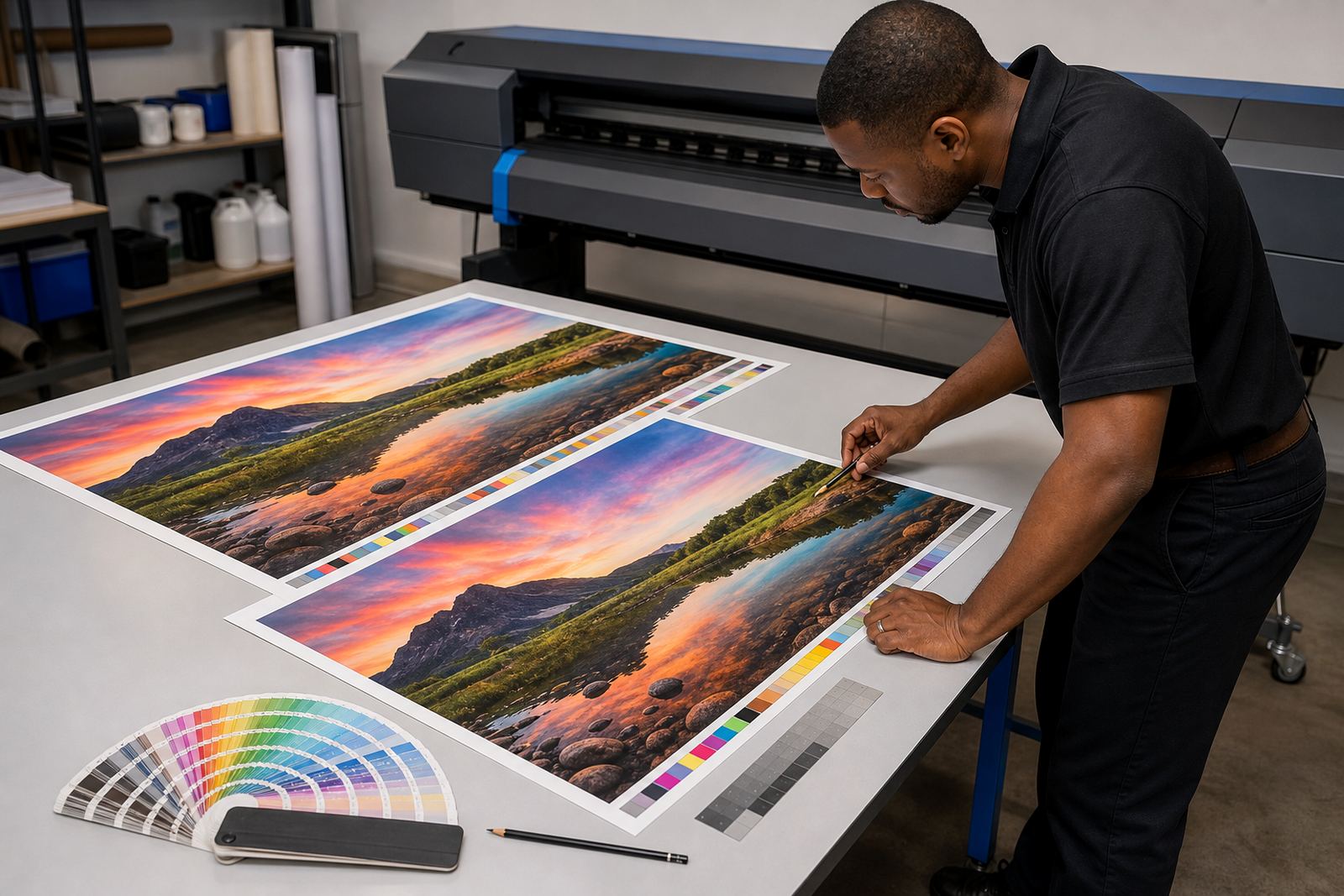
Before a repeat job goes into production, compare the new setup with the approved sample. The aim is not perfection on a monitor, it is consistency on the finished print. Use a simple check across the first metres of output, then confirm whether the solids, greys and brand colours sit where they should. If something has shifted, stop and inspect the RIP settings, printhead driver values and media selection before the run grows expensive.
This short check works well for poster batches, retail graphics and long outdoor runs where a small drift can multiply across several rolls. It is also useful after maintenance, a queue reset or a remote setup session. The point is to catch a change early, while there is still room to correct it without wasting material.
- Compare the first print against the approved sample
- Check solids, greys, skin tones and line edges
- Confirm the correct queue, profile and media name
- Inspect the printer after maintenance or board work
Keep maintenance tied to colour, not only to uptime
Preventive maintenance is part of colour work too. Worn heads, unstable ink delivery, dirty encoder strips and ageing boards can all show up as a colour problem before they become a hard fault. If the printer begins to vary from one side of the sheet to the other, or if a neutral grey picks up a tint, do not treat it as a design issue first. Check the machine path, the board settings and the printhead driver setup.
For shops handling a lot of repeat production, keep a simple record of profile changes, board replacements, nozzle issues and the last approved test print. That record helps during fault finding and saves time when a job has to be matched to a previous run. Zips, labels and a short logbook note are enough, provided the notes are clear and kept with the printer area.
- Link maintenance notes to colour changes
- Record board swaps, driver changes and nozzle issues
- Keep approved test prints with the printer log
- Review recurring shifts before they become waste
When local support is useful on a colour issue
Some colour problems are rooted in the RIP, some in the board, and some in the way the printer has been set up on site. Remote setup and support help when a shop in Johannesburg, Durban, Cape Town, Bloemfontein or Pretoria needs the queue checked, the profile confirmed or the printhead driver setup reviewed without pulling the machine out of production longer than needed. A good support session should leave the operator with clear settings, a clean print path and a repeatable method for the next job.
InkFlow RIP works with wide-format inkjet printer control boards and RIP software for print shops across South Africa. The team handles RIP installation, board installation, remote setup, colour profile setup, queue workflow design, fault finding, preventive maintenance, operator training, production tuning, backup and recovery, and ongoing support from Midrand, Gauteng.
- Remote setup for colour and queue issues
- Board and printhead driver checks
- Profile and workflow review for repeat jobs
- Operator handover with practical settings