
Start with the job file and the front end settings
Before touching hardware, check the file path, queue name and print preset attached to the job. A wrong media preset, a shifted resolution choice, or a damaged file can look like a control board fault, especially on busy wide-format inkjet lines in Midrand, Johannesburg and Pretoria.
Look at the last known good job and compare it with the problem file. If the issue appears only on one queue, the RIP setup usually needs attention before any board is removed.
- Confirm the correct queue is selected.
- Check whether the file opens without warnings.
- Compare media size, pass count and bi-directional settings.
- Review recent operator changes to presets or folders.
- Re-send a small test file if the workflow allows it.
If a job stops at the RIP stage, note the exact step where it fails. That detail helps separate a file handling problem from a printhead driver or board communication issue.
Read the fault signs before opening the machine
Most print faults show a pattern. Missing bands, repeated misfires, frozen carriage movement or a board that drops communication are different symptoms, even if the operator sees all of them as one problem. In Durban and Cape Town, where humidity and coastal air can affect connectors and storage, the signs often point to contamination or unstable contact before anything more serious.
A clear first pass saves time and limits unnecessary strip-down work. Use the machine behaviour, not guesses, to guide the next step.
- No output at all can point to queue, port or board communication issues.
- Partial output with missing colour often points to driver, head or signal problems.
- Random pauses may link to data flow, cable seating or firmware mismatch.
- Repeated error messages should be recorded exactly as they appear.
- Physical scraping sounds need an immediate mechanical check.
Take note of when the fault starts. A problem that appears after warm-up, after the first metre, or only on long runs usually has a different cause from one that is present from the first sheet.
Check the board, cables and signal path
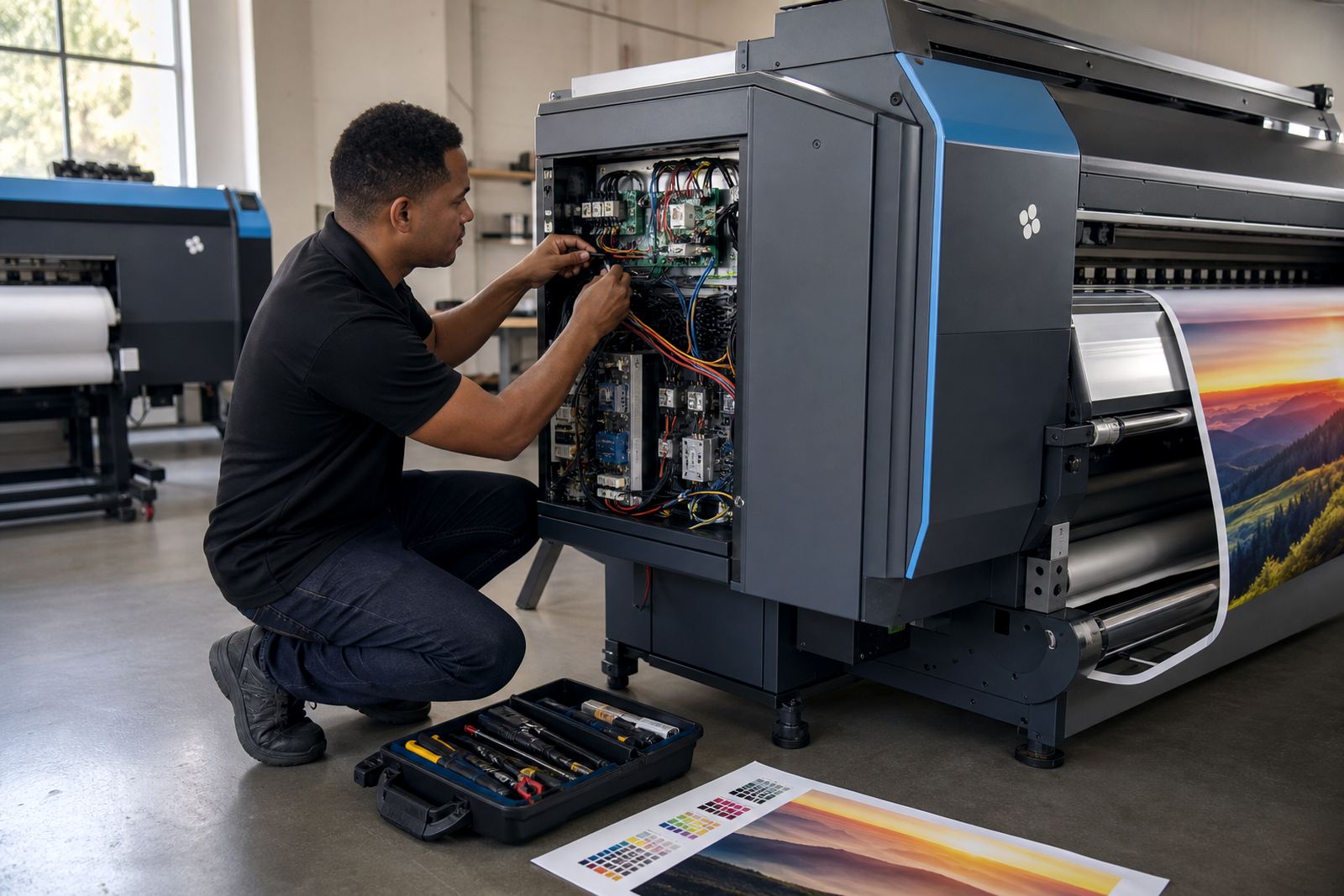
Inkjet printer control boards and printhead drivers depend on clean signal paths. Loose plugs, oxidised terminals or a damaged ribbon can interrupt data flow and create confusing output faults. On older systems in Bloemfontein, Johannesburg or the East Rand, vibration and repeated panel opening can slowly loosen connectors even when the machine still powers up normally.
Work through the signal path one point at a time. Do not rush past the basics because many repeated faults come from a connector that is half-seated or a cable that was bent too sharply during cleaning.
- Switch off safely before inspecting connectors.
- Check for dust, residue or bent pins.
- Reseat only the parts meant for user access.
- Look for cable damage near hinges and moving sections.
- Confirm the board has the correct power and data links.
If the machine uses a spare channel, a cross-check can help isolate the fault. When the problem stays on the same channel, the board or driver path deserves closer fault finding.
Colour errors need more than a quick reset
Colour shifts are not always a RIP problem, but the RIP often sits in the middle of the workflow. A profile mismatch, wrong media setting or incorrect ink limit can cause muddy neutrals, weak solids or a visible colour cast. Graphic designers and production teams notice this quickly on proof work and repeat signage.
Check whether the same artwork looks different across queues or printers. If one machine holds colour well and another does not, the issue may sit in the profile set, the printhead driver settings or the maintenance state of the unit.
- Verify the correct colour profile for the media type.
- Check whether the same file was reused from another queue.
- Review ink limits and resolution settings together.
- Print a control sample and compare it to a known reference.
- Check for clogged nozzles before changing software values.
In coastal cities like Durban and Cape Town, storage conditions can also affect media behaviour. If the substrate has absorbed moisture, the colour result may wander even though the RIP settings look correct.
Use a short maintenance pass before major changes
Preventive maintenance often clears faults that look larger than they are. Dust around boards, ink residue near sensor points and worn rollers can all create false signals or poor feeding. A short maintenance pass helps the team avoid changing settings when the real issue is physical wear.
Keep the pass practical and recorded. Clean the visible problem areas, inspect the movement path, then repeat the same test job after each step so the result stays traceable.
- Clean accessible dust build-up around the board housing.
- Check carriage travel for resistance or uneven movement.
- Inspect rollers and sensor windows for residue.
- Look for loose covers or panels that vibrate during print.
- Record what changed after each maintenance step.
If the machine behaves better after cleaning but the fault returns under load, the issue may be deeper in the signal path or power stability. That is the point where board repair, driver setup or a controlled recovery process becomes more useful.
Recovery steps for queues, backups and stalled production
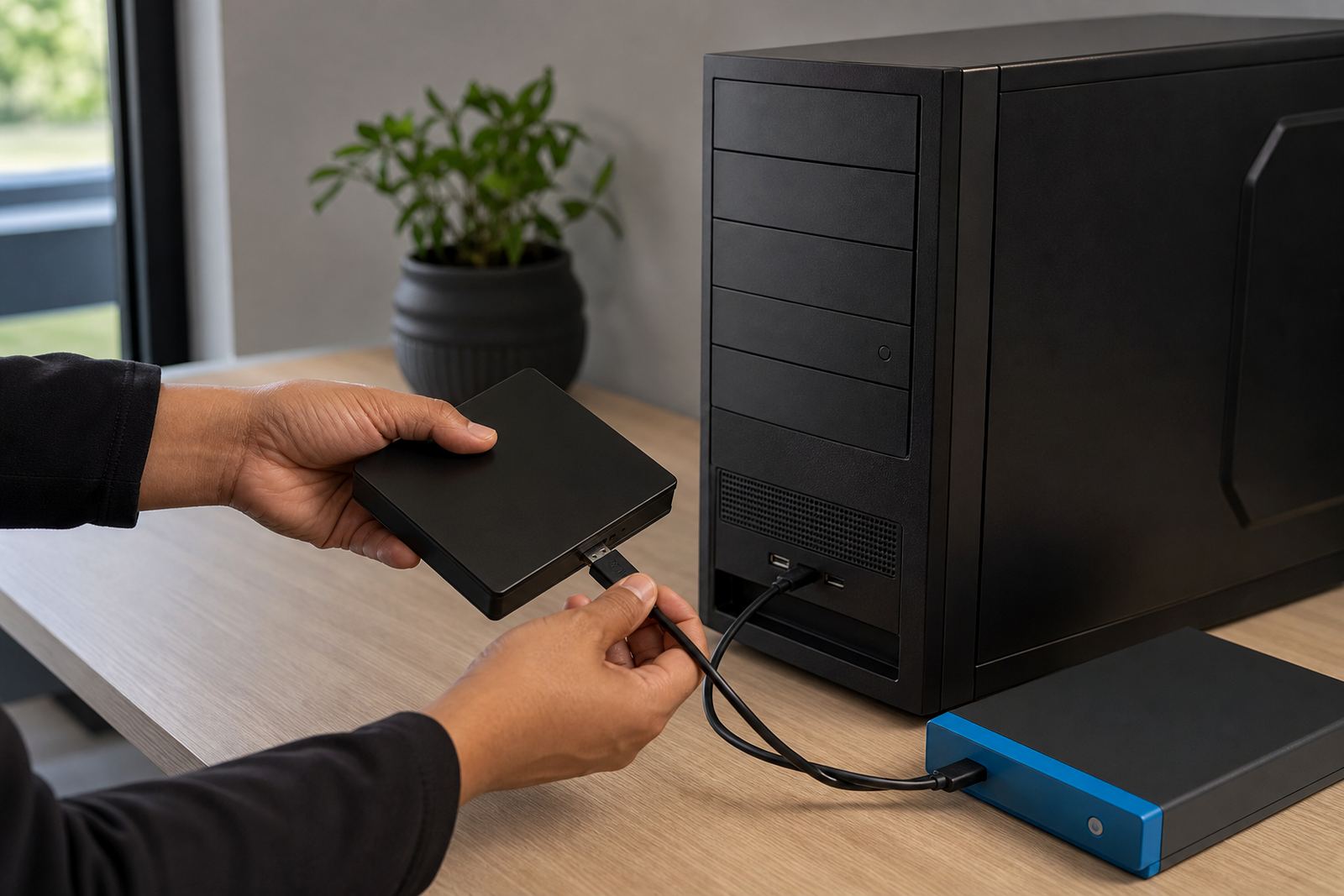
When a queue stops or a system loses its setup, a careful recovery plan keeps the shop moving. Backups matter because they protect queues, profiles and workflow settings that took time to tune. Without them, a small fault can turn into a long restart while operators rebuild settings from memory.
Use one clean restore point rather than stacking partial fixes. On production floors in Pretoria, Midrand and West Rand sites, a structured restore is usually safer than patching several unrelated settings at once.
- Save the current state before making changes.
- Restore queues and profiles in the correct order.
- Test one printer path before loading full production.
- Check operator permissions after the restore.
- Confirm that maintenance values stayed intact.
Where remote setup is needed, keep the fault notes nearby. A clear record of the error, the queue name and the last settings used makes it easier to trace whether the blockage sits in software, board logic or operator handling.
When the first checks are not enough
If the same fault returns after the basic checks, the problem may sit in the board firmware, driver behaviour or a deeper printhead communication path. At that point the shop needs a more focused technical pass rather than repeated resets. In large-scale print rooms, repeated guesswork wastes consumables and keeps the machine out of service longer than necessary.
A proper escalation starts with facts already gathered. Keep the error messages, job details and test results together, then move to fault finding with a technician who can inspect the board, refine the RIP workflow and test the print path methodically.
- Keep the exact error text and timing.
- Note which media, queue and operator were involved.
- List any changes already tried.
- Identify whether the fault is mechanical, software-based or communication related.
- Use the same test file for each new check.
That record is useful for Midrand, Johannesburg, Durban, Cape Town, Bloemfontein and the surrounding areas where print rooms run under tight schedules and mixed workloads.