
Start with the settings that carry the job
For most print shops, the useful backup is not one file, it is a small set of settings that work together. If you only save artwork and ignore the RIP queue, colour profiles and board parameters, the system may open but still print poorly after a fault.
On a wide-format inkjet setup, the main items worth saving are the RIP workspace, printhead driver settings, media presets, nesting rules, ink limits and any machine communication settings tied to the control board. If your shop prints in Durban or Cape Town, keep an eye on environmental notes too, because humidity and dust can affect cleaning routines and head behaviour.
Make one clean backup set before changes
Set aside a proper backup point before you load new profiles, replace a control board or adjust queue rules. That way, if the new setup behaves badly, you can restore the previous state without rebuilding the whole production line from scratch.
- Export the RIP software job list and media presets.
- Save colour profiles, calibration data and ink limit files.
- Record printhead driver values and board communication settings.
- Copy any custom nesting templates used for repeat jobs.
- Store operator notes for maintenance cycles and nozzle checks.
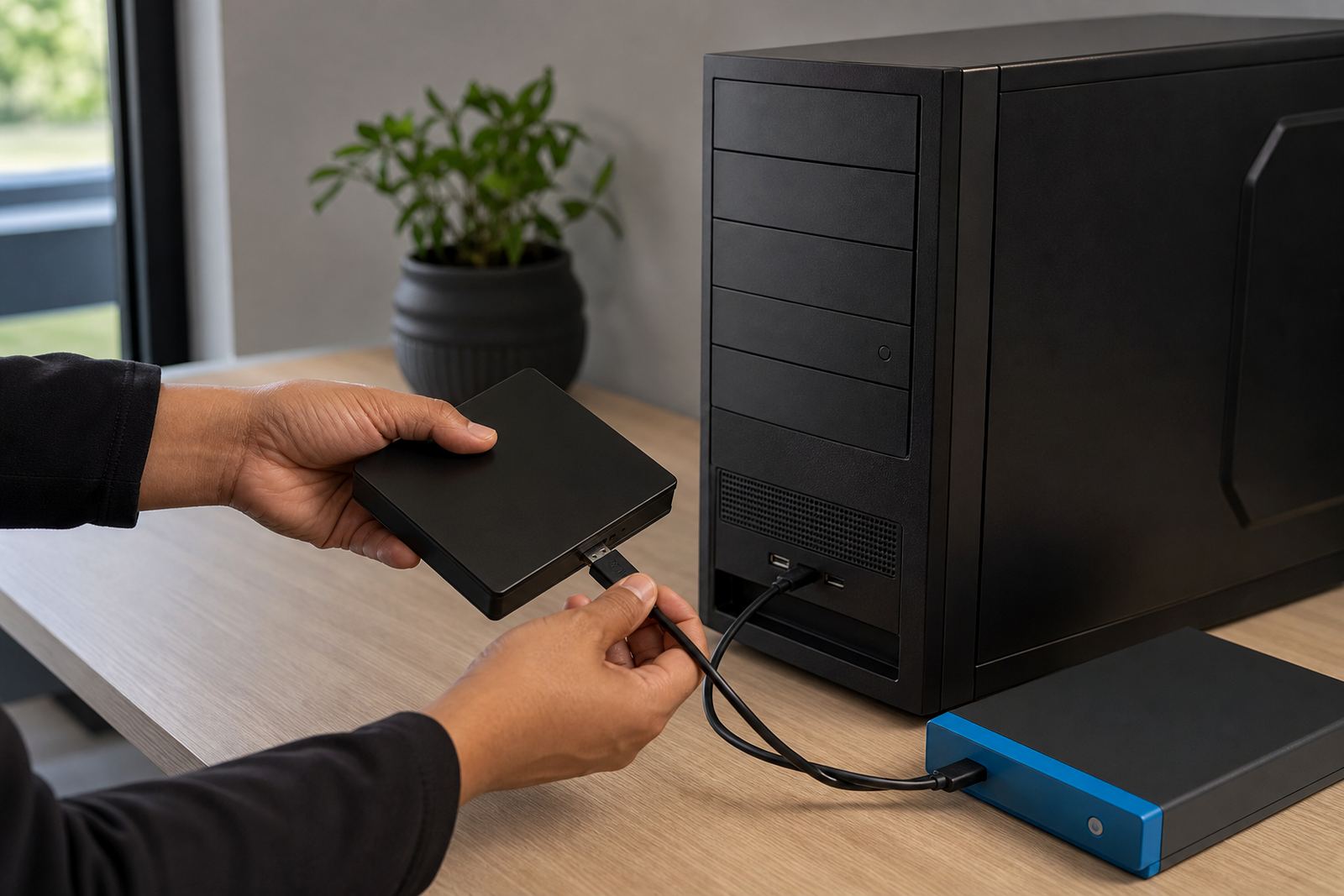
Keep the backup in two places. One copy can stay on the local server or workstation, and another should be on a separate drive that is not used for daily print work.
Use a file structure that makes restoration easier
When backups are named in a tidy way, the restore process takes less guesswork. A folder labelled only with dates is not enough when you must restore a specific printer, media type or queue setup after a rush period in Johannesburg or Pretoria.
Use clear folders for each printer and each function. Keep board settings separate from profile files, and keep operator notes separate from the software export. That makes it easier for a technician to find the right piece when a machine is down and the pressure is on.
- Printer model folder
- RIP software folder
- Colour and profile folder
- Board and driver folder
- Maintenance and recovery notes folder
Back up colour control with the same care as the machine
Colour work is often the first thing to drift after a rebuild, especially when a profile gets overwritten or a driver setting changes without notice. A saved profile is useful, but it is even better when linked to the ink set, media type and resolution used on the day it was created.
For shops doing banner, vinyl or rigid board work, keep a written note of the media feed direction, pass count, curing settings where relevant and the profile name used for each production path. If a job was approved on one machine and later shifted to another, those notes reduce repeat testing and waste.
Protect the control board settings that keep printing stable
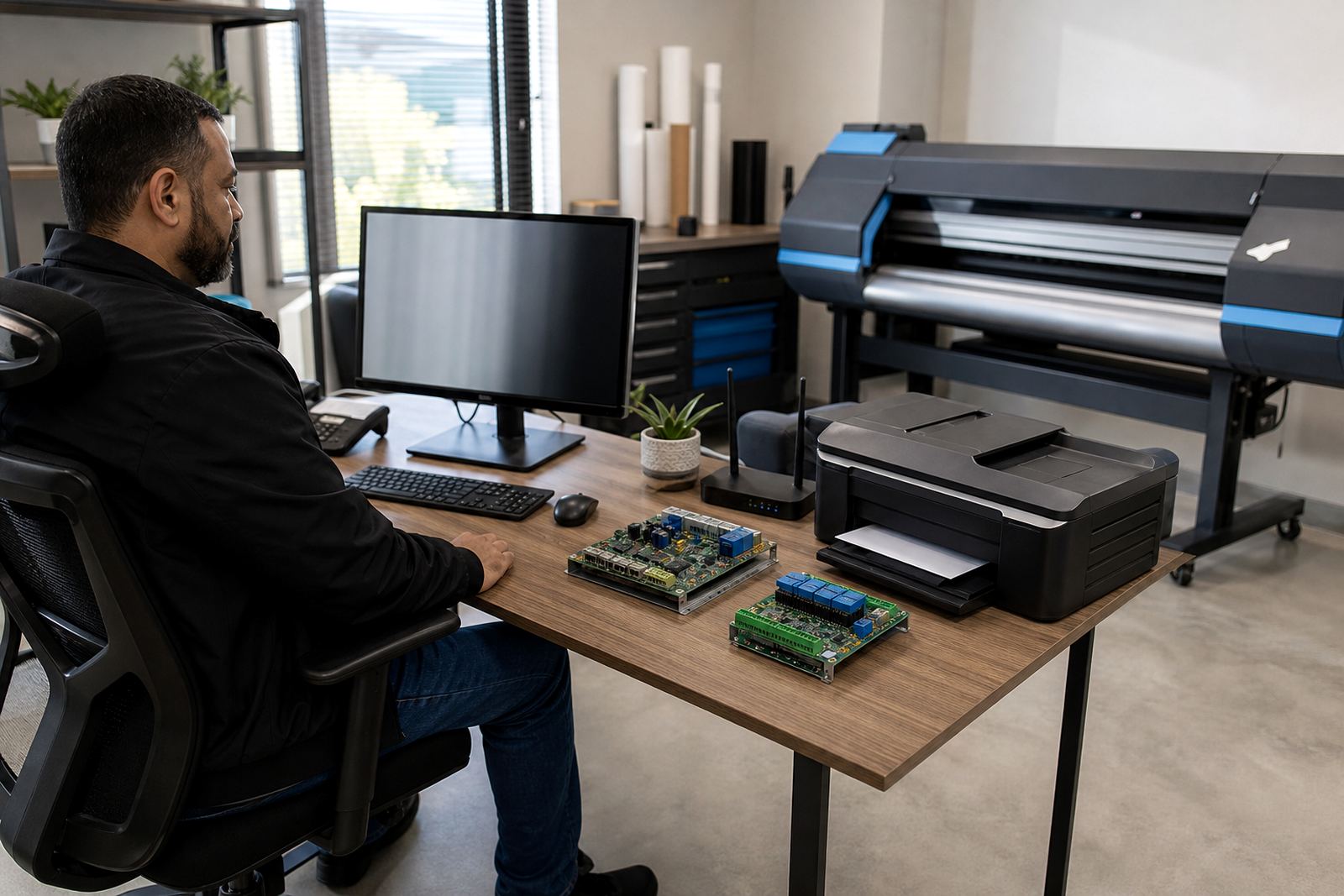
The control board often stores values that are easy to overlook until the printer refuses to communicate properly. These settings can include carriage timing, nozzle firing data, sensor behaviour and the link between the RIP queue and the print engine.
When a board is replaced or repaired, a full backup of the original settings helps avoid starting from a blank state. That matters in production facilities where downtime affects large runs, especially when several machines share the same workflow and one broken configuration can disrupt the whole line.
- Save the board configuration before any repair work.
- Note cable positions and port labels before disconnecting anything.
- Keep firmware or utility versions listed in the backup notes.
- Record the last stable test print and nozzle check result.
Test the restore before you need it in production
A backup only proves itself when it can be restored cleanly. After you save the files, load them onto a spare workstation or a test copy of the RIP environment and confirm that the profiles, queue rules and driver values appear where they should.
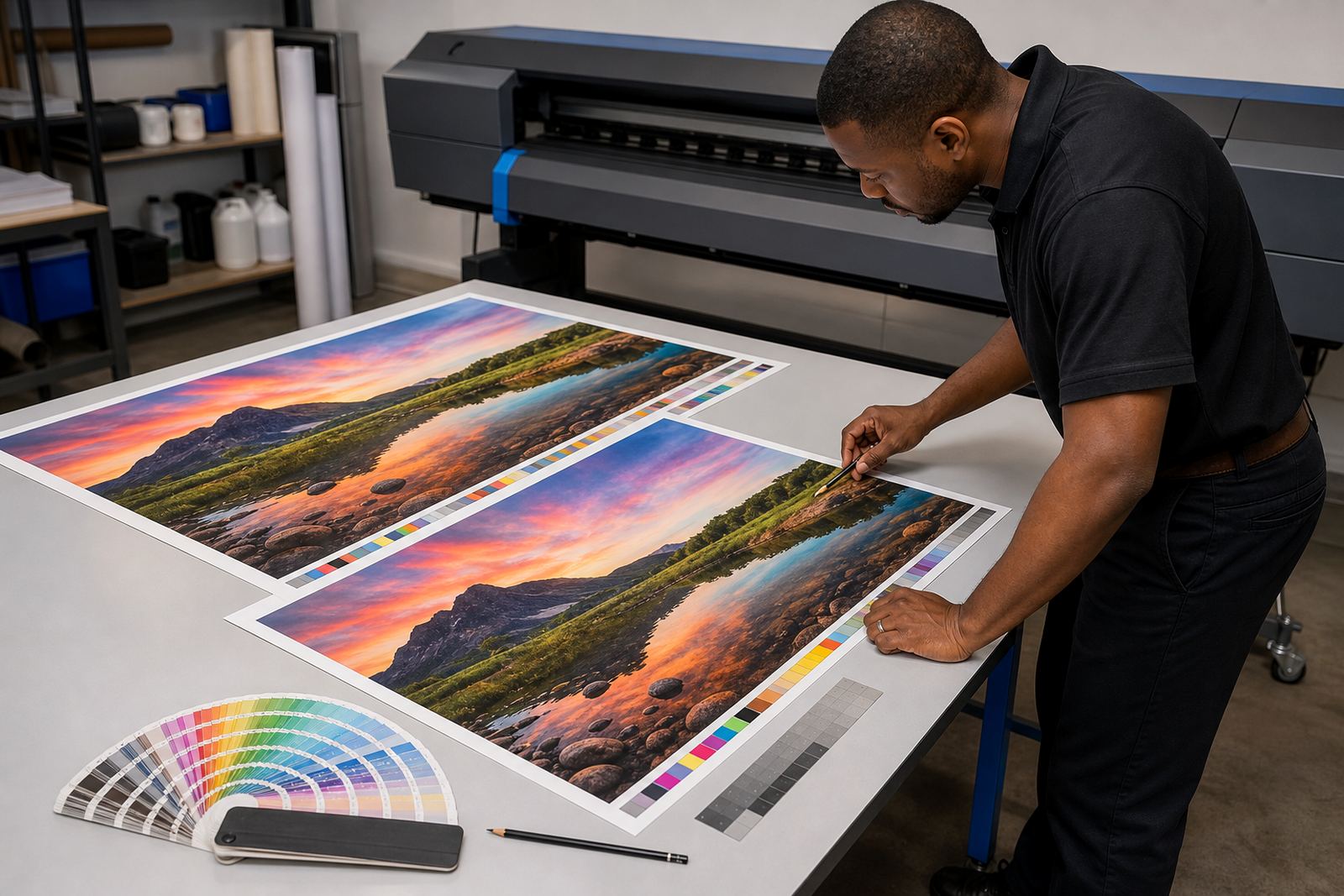
Run a short test job with a known image and compare the output against the stored standard. Check registration, colour balance, nesting behaviour and any maintenance prompts that may have been carried across. A small test now is far better than a missed deadline later.
- Confirm the RIP opens with the saved workspace.
- Check each printer queue is visible and active.
- Load one colour profile and one media preset.
- Print a controlled sample and compare it carefully.
Keep the backup routine part of weekly maintenance
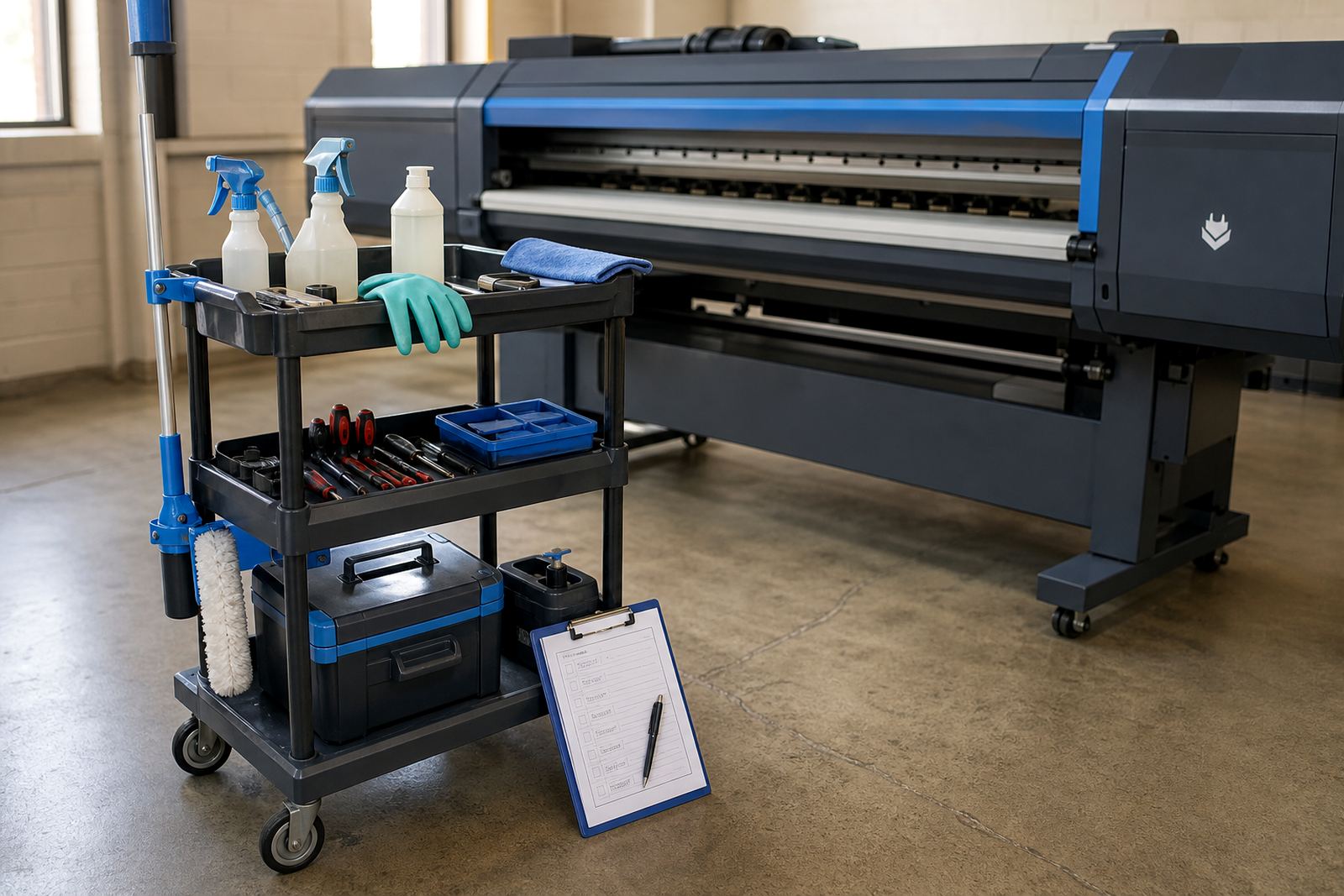
Backups are easiest to keep when they sit inside the normal maintenance rhythm. Shops that work with wide-format inkjet equipment often already have cleaning logs, nozzle checks and supply inspections, so the backup routine should sit beside those tasks rather than being treated as a separate project.
After operator training, a profile change or a board fault, update the stored files and note what changed. In Midrand and across the country, many print teams work under pressure and forget the last adjustment that made the output stable. A tidy recovery record avoids that gap, and yes a small note today can save a longer rebuild later.