
Get the workstation and printer into the same conversation
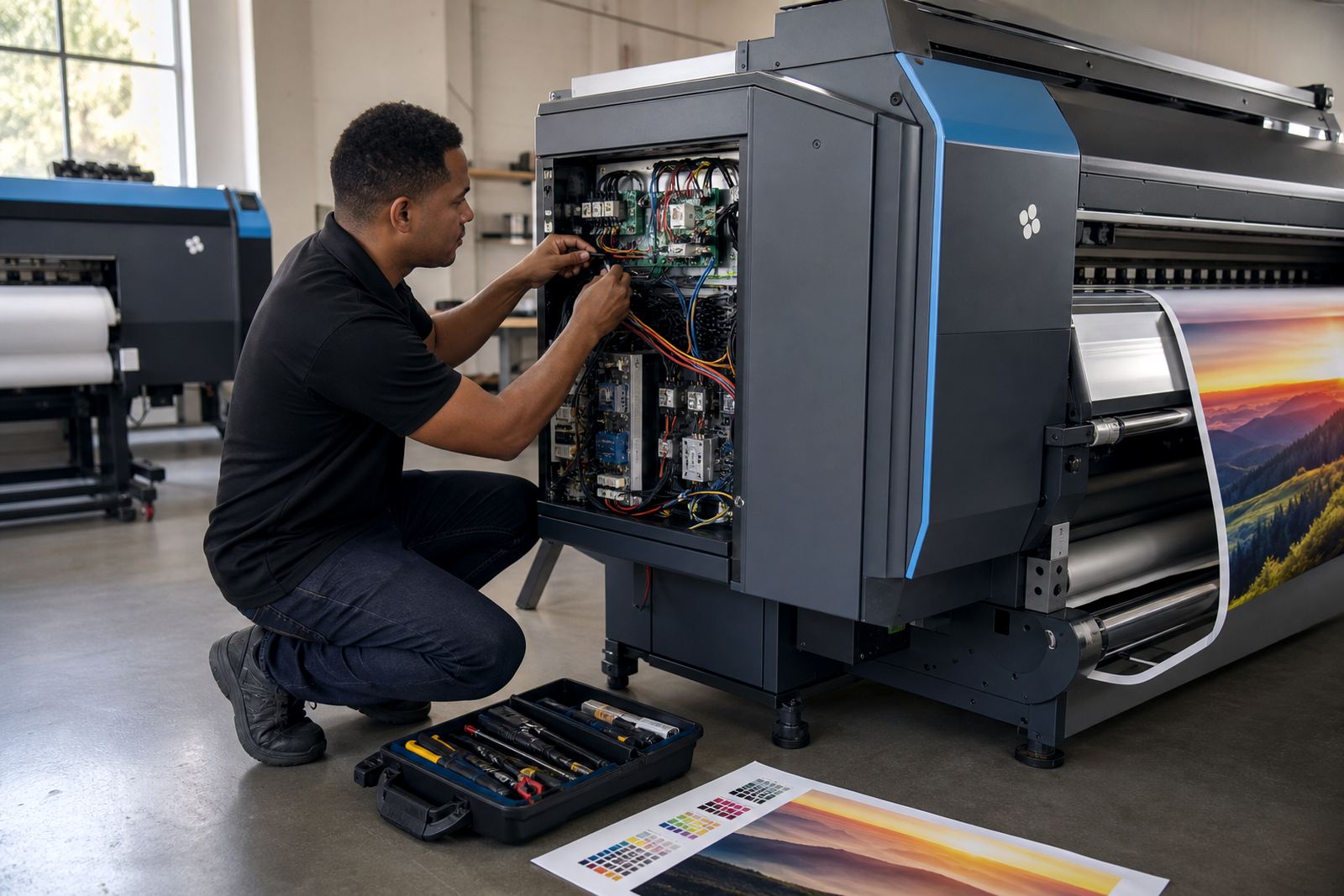
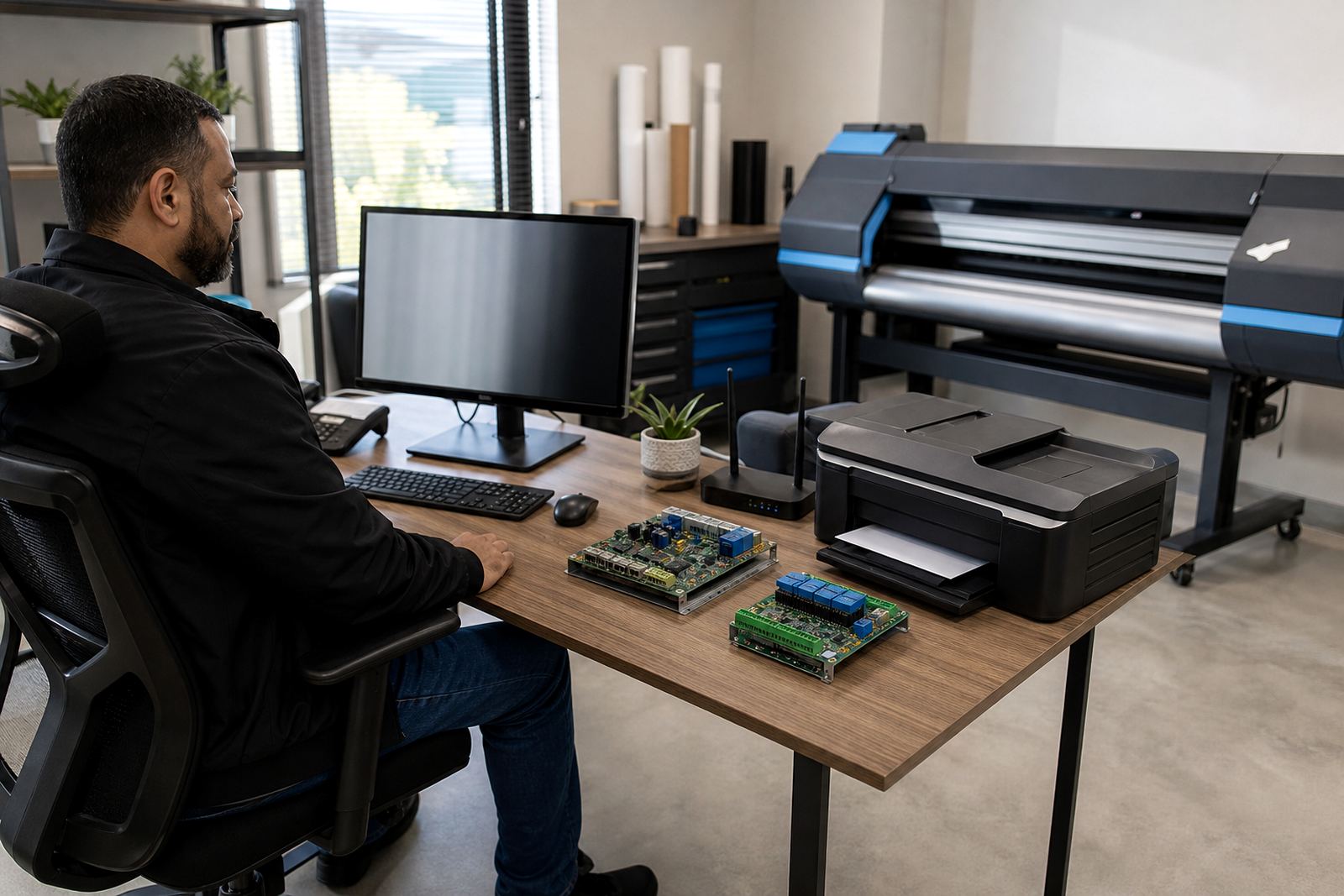
Before any remote session, make sure the computer that runs the RIP can talk to the printer without interruptions. The workstation should be switched on, logged in, and close enough to the printer to reach the correct USB, network or serial connection without guesswork. If the printer uses a control board, keep the board housing openable and safe to access, with the machine parked in a position that lets a technician see status lights, harnesses and connector points.
It helps to clear the area around the printer so the operator can move around it without lifting rolls, cartons or frames out of the way mid-session. In Midrand and the rest of Gauteng, dust from busy production spaces can settle into fan vents and connectors, so a quick wipe down around the machine and computer is worthwhile before the call starts.
- Power the RIP workstation and printer before the session.
- Confirm the correct cable path between computer and printer.
- Keep the control board area accessible.
- Have the printer on a job state that can be paused safely.
Keep the right files ready for colour and queue setup
Remote colour work goes faster when the necessary files are already in place. That includes the media list, file formats used in your shop, any existing profiles, and a few recent prints that show the current result. If you are setting up nesting or queue workflow, have sample artwork that reflects the normal mix of panels, repeats, roll widths and finishing allowances used on your floor.
For print shops in Johannesburg, Pretoria, Durban, Cape Town and Bloemfontein, the same machine can behave differently across media types and indoor conditions. Coastal humidity in Durban can affect dry-down and handling, while inland temperature shifts can influence feed stability and colour consistency. Good notes on the jobs you print most often save time when setting up profiles, ink limits and queue rules.
- Save recent artwork files in an easy-to-find folder.
- Gather old profiles, if any are still in use.
- Keep sample prints that show banding, colour drift or alignment issues.
- List the materials you print on most often.
Check access, logins and remote tools before the call
A remote setup session can only move as far as the access available on the day. Have the needed user login details ready for the workstation, the RIP software and any printer utility screens tied to board settings or firmware-style controls. If remote software is used to view the benchtop, test that it opens properly and that the screen can be seen clearly at full size.
Keep one person on site who can stand at the printer and another who can work at the computer if the session calls for two hands. That is often useful when fault finding a board, checking printhead driver settings or confirming whether a warning is coming from the software, the cable path or the machine itself. If the site uses restricted access or shared logins, sort that out before the session rather than during it.
- Have the Windows or system login ready.
- Confirm access to the RIP and printer utilities.
- Test remote viewing software if it is part of the setup.
- Nominate one operator and one computer contact for the session.
Make a clean record of the fault or setup task
Remote support works better when the task is described plainly. If the goal is installation, note the printer model, the board type where relevant, the number of heads, the ink channel layout and the media sizes used in production. If the job is fault finding, write down the exact symptom, the last normal job, and any recent changes such as a power interruption, a head replacement or a queue edit. This is especially useful where load-shedding or unstable mains power has affected production equipment.
A short written note beats a long chat with missing detail. Mention whether the issue affects all jobs or only one queue, one material, or one colour channel. If the printer has a habit of showing intermittent faults, say whether it happens on startup, during heavy throughput or after the machine has been idle. Those details shape the path through the session and help avoid unnecessary restarts or repeated checks.
- Write down the fault exactly as it appears.
- Note recent maintenance, part swaps or power events.
- Note whether the problem is constant or comes and goes.
- Record the media, mode and queue used when the issue shows up.
Prepare the print samples that tell the real story
Good samples are worth more than general descriptions. Have a few recent prints ready, including one that shows the problem clearly and one that shows a job printed the way it should look. For colour profile setup, keep a target print from a known media setting and a reference image that shows skin tones, greys, solid blocks and fine text. For nesting and queue workflow design, keep artwork that shows how your shop arranges repeats, cut lines and mixed-sized jobs.
If the issue is banding, head misfiring or poor drop placement, note which pass counts and print modes were used. If the concern is colour drift, record whether the result changes across the roll or only after the machine has warmed up. Those small details help with printhead driver setup, maintenance checks and colour profile decisions, especially on busy wide-format lines where the same printer handles many jobs in a day.
- Keep both bad and good samples nearby.
- Mark the media type used for each sample.
- Note pass count, resolution and print mode where possible.
- Keep a reference print for colour comparison.
Finish with a backup plan for queues, profiles and operators
Before the session closes, make sure the important settings are saved in more than one place where practical. That includes queue layouts, media presets, colour profiles and any notes used for daily operation. If the work includes backup and recovery, confirm where the saved files live and who can open them later. A small label on the folder structure can save time when staff changes shift or when a night operator needs to continue a job.
It is also worth confirming who will use the printer after the setup is done. Operators should know which queue to open, which media preset to choose, and which checks to run before a long production job starts. In a shop that handles work for Johannesburg, Pretoria, Durban, Cape Town or Bloemfontein, clear handover notes matter because different teams often touch the same machine across the week.
- Save queue layouts and media presets in a clear folder structure.
- Keep copies of colour profiles and maintenance notes.
- Make sure operators know the correct daily startup checks.
- Store recovery files where they can be found later.