
What a small print shop needs before it adds RIP control
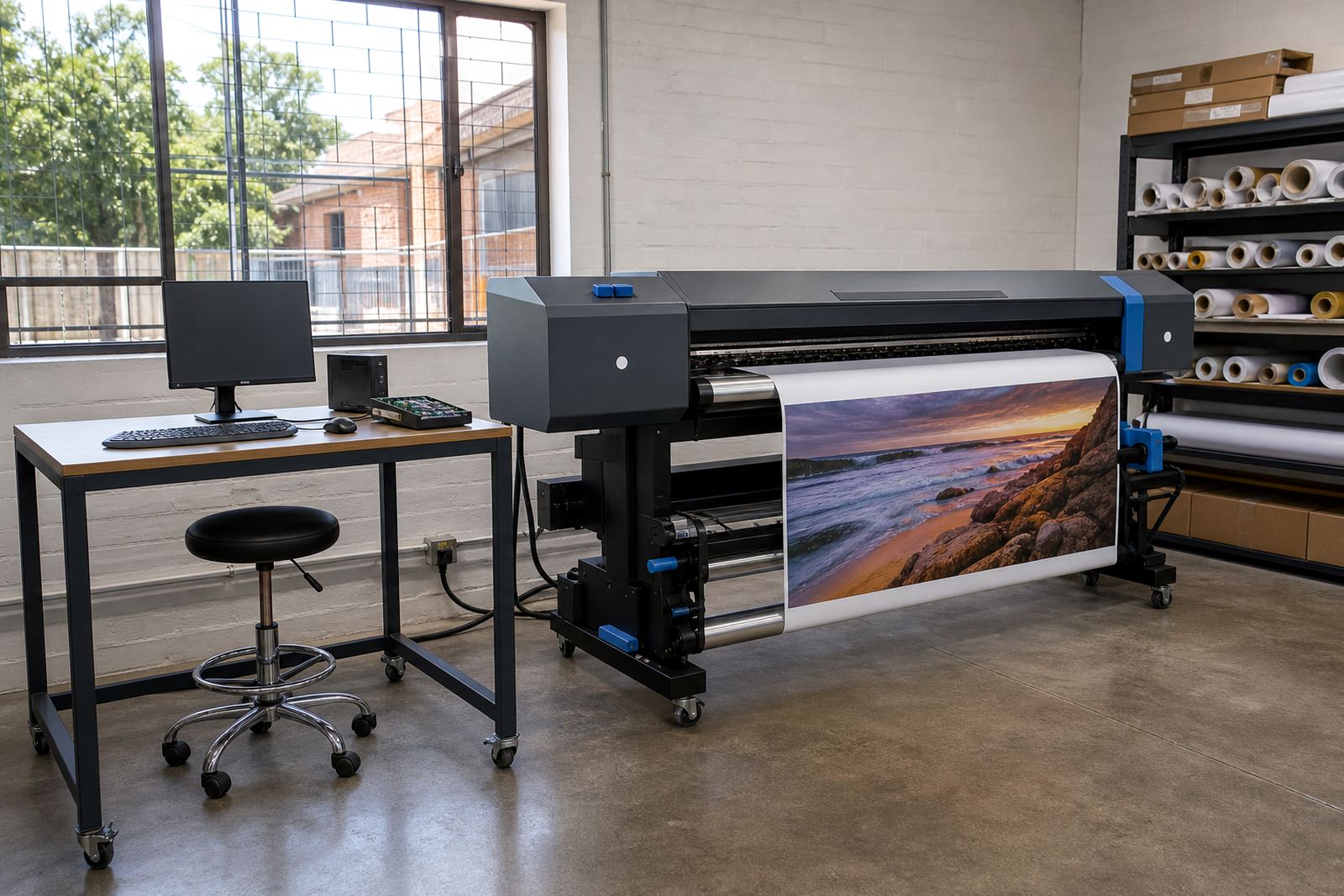
Smaller shops often start with one wide-format printer and a short list of everyday jobs, from vinyl prints to exhibition panels. The right RIP setup helps the printer receive cleaner instructions, while a matched control board keeps signals steady and the print path easier to manage.
Before adding new software or boards, count the actual jobs moving through the shop. A shop that prints short runs for Johannesburg retail work may need faster job switching, while a Durban operator near the coast may place extra value on stable electronic parts and sensible maintenance because humidity can affect stored media and internal components.
- Check the printer model, carriage width and supported printhead type.
- Confirm whether the machine uses one board or a layered control setup.
- List the file types your designers send most often.
- Note how many operators handle the same queue during a normal week.
- Record colour problems, banding, misfeeds or repeated job errors.
Matching RIP software to the way small teams work
RIP software is not only about sending a file to print. It manages raster conversion, ink limits, colour separation, nesting and queue control, which matters when a small team must keep jobs moving without wasting material. A good setup can reduce reprints and help the operator see what is waiting, what is paused and what still needs profiling.
For a shop in Pretoria or Midrand, the most useful setup is usually the one that fits the day to day rhythm, not the one with the longest list of features. If the team handles stickers, banners and indoor panels on the same machine, the RIP should support clear presets and quick switching between media profiles.
- Use saved presets for each media type and ink load.
- Keep profile names short and plain enough for any operator to read.
- Set nesting rules that reduce offcuts without crowding the sheet.
- Store test prints for common jobs so colour shifts are easier to spot.
- Limit the number of half-finished queues left open on shared machines.
Board and printhead driver setup without guesswork
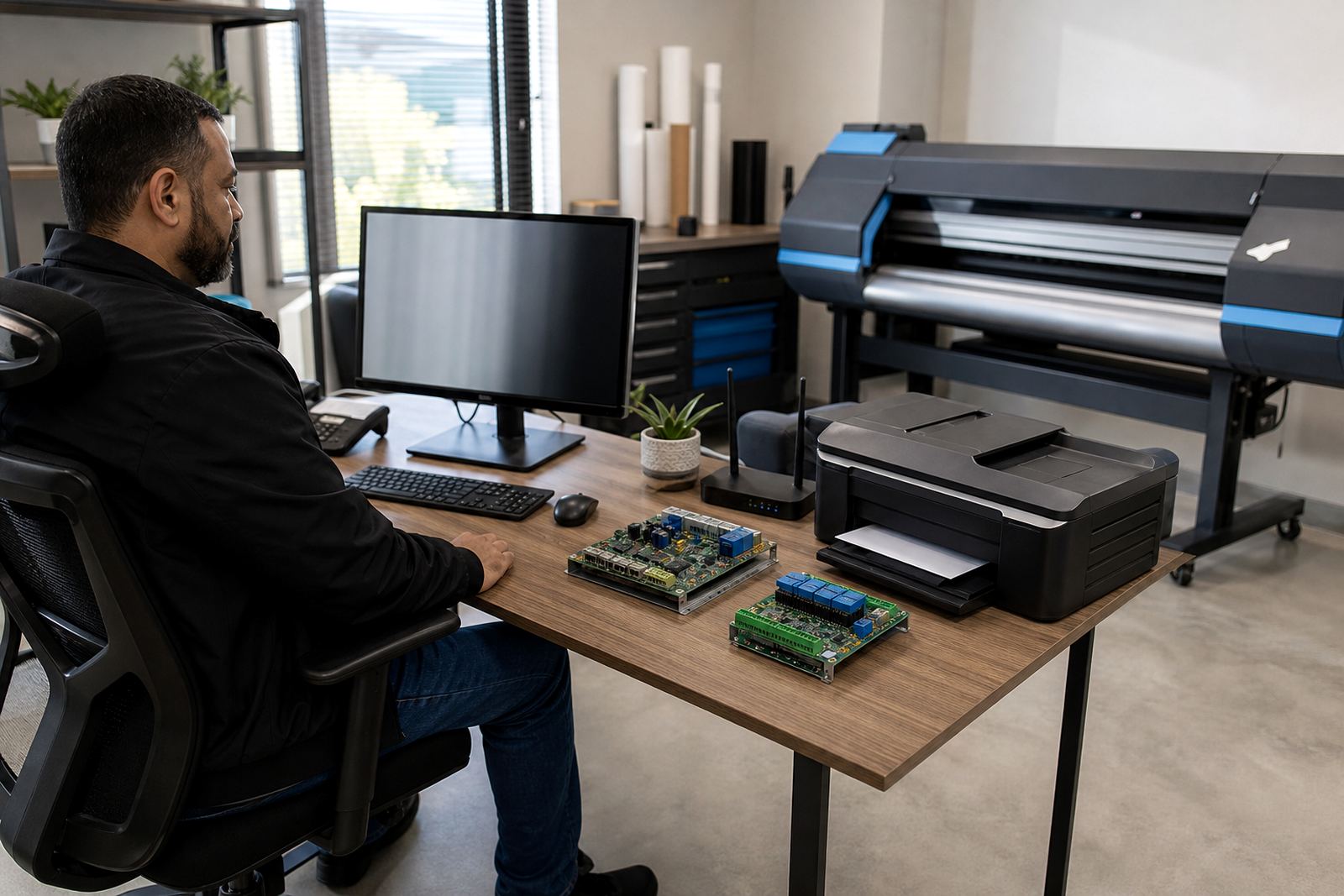
Printer control boards and printhead drivers sit at the heart of the machine. When they are matched badly, the printer can show unstable firing, queue faults or wasted ink during testing. A careful installation checks cabling, board placement, firmware or parameter settings where needed, and the way the software speaks to the print engine.
In a smaller shop, the biggest risk is often not the hardware itself but rushed setup by someone who has not checked the whole path. That includes the computer, the RIP, the board and the printhead driver layer. On some jobs, a tiny setting error creates visible defects across every panel, which is costly on long media runs.
- Confirm voltage and communication settings before starting production.
- Keep spare cables and connectors labelled for each machine.
- Test nozzle checks before full runs, not only after faults appear.
- Record the board settings used for each printer.
- Keep a clean backup of working parameters and queue templates.
Colour control that holds up on real jobs
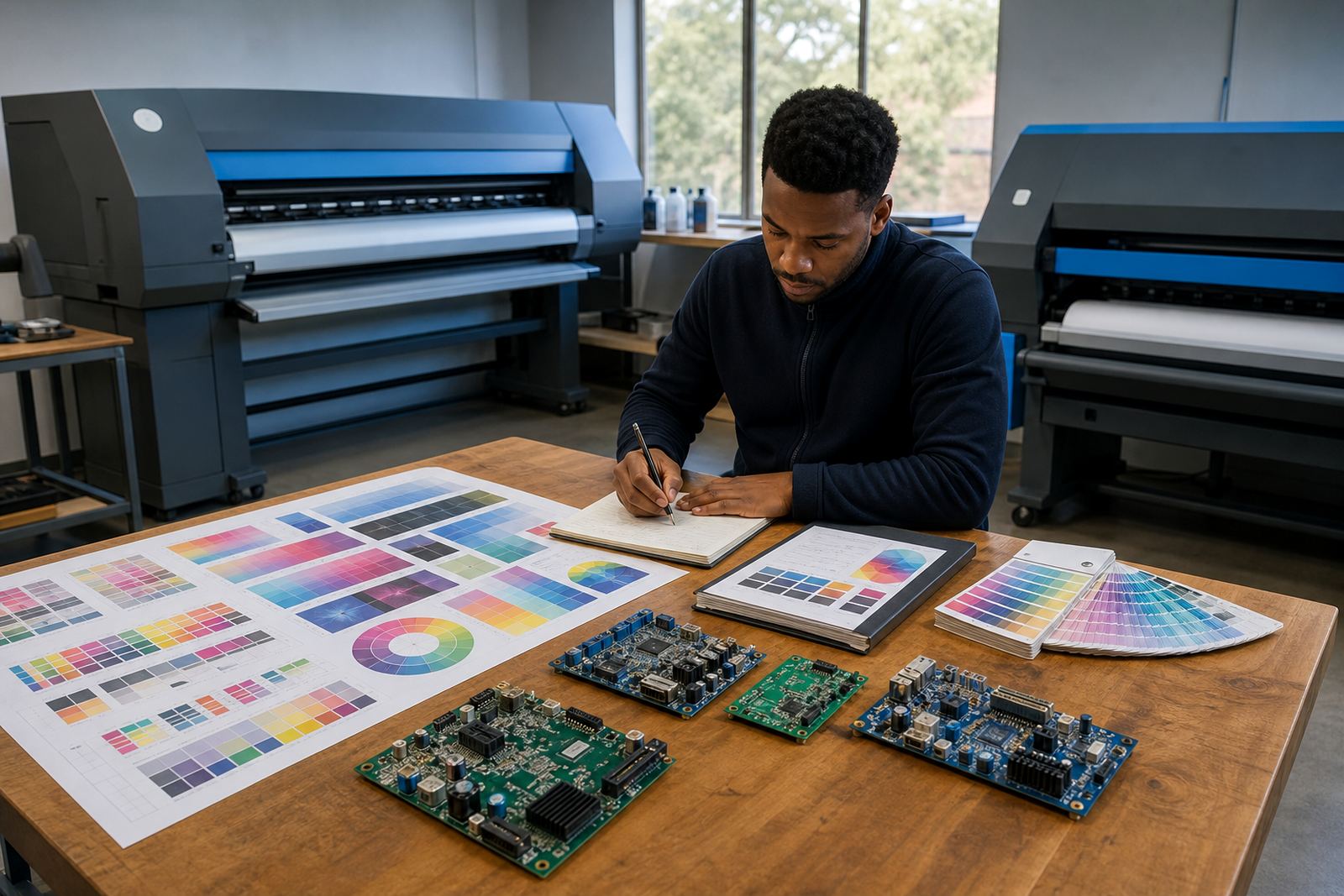
Colour management is where many small shops gain control quickly. Profiles, linearisation and ink limits help the printer place colour where it belongs, rather than making each job a fresh experiment. That matters when a client wants the same red on separate batches, or when one poster must match another printed days earlier.
Midrand teams often handle mixed work for agencies, shops and exhibition teams, so profiles need to be practical rather than academic. The goal is repeatable output on the media actually used in the shop. A profile that looks perfect on one vinyl roll but fails on another is not much use when the queue is full.
- Keep separate profiles for matte media, gloss media and backlit work.
- Run colour checks after changing ink batches or media rolls.
- Store approved swatches near the printer for quick comparison.
- Use one named standard for solid blacks and skin tones.
- Retest colour after maintenance that touches heads, dampers or board settings.
Keeping jobs moving when the team is small
Small shops work best when the workflow is plain and the handover points are easy to follow. Queue design matters because it shows which jobs are ready, which need colour correction and which should wait for media. That prevents the same file from being opened, changed and printed three different ways by three different people.
A clean queue also helps with training. A new operator should be able to read the process without guessing who touched the file last. If a shop in Cape Town or Bloemfontein has more than one person sending work to the same printer, the queue layout should separate test jobs from final production and keep urgent work visible, not buried.
- Use clear queue names for test, proof and final output.
- Move approved files into one shared production folder.
- Delete or archive damaged files before they spread through the queue.
- Assign one person to confirm media type before output starts.
- Keep daily notes on faults, fixes and repeat colour issues.
Maintenance that protects a modest machine room
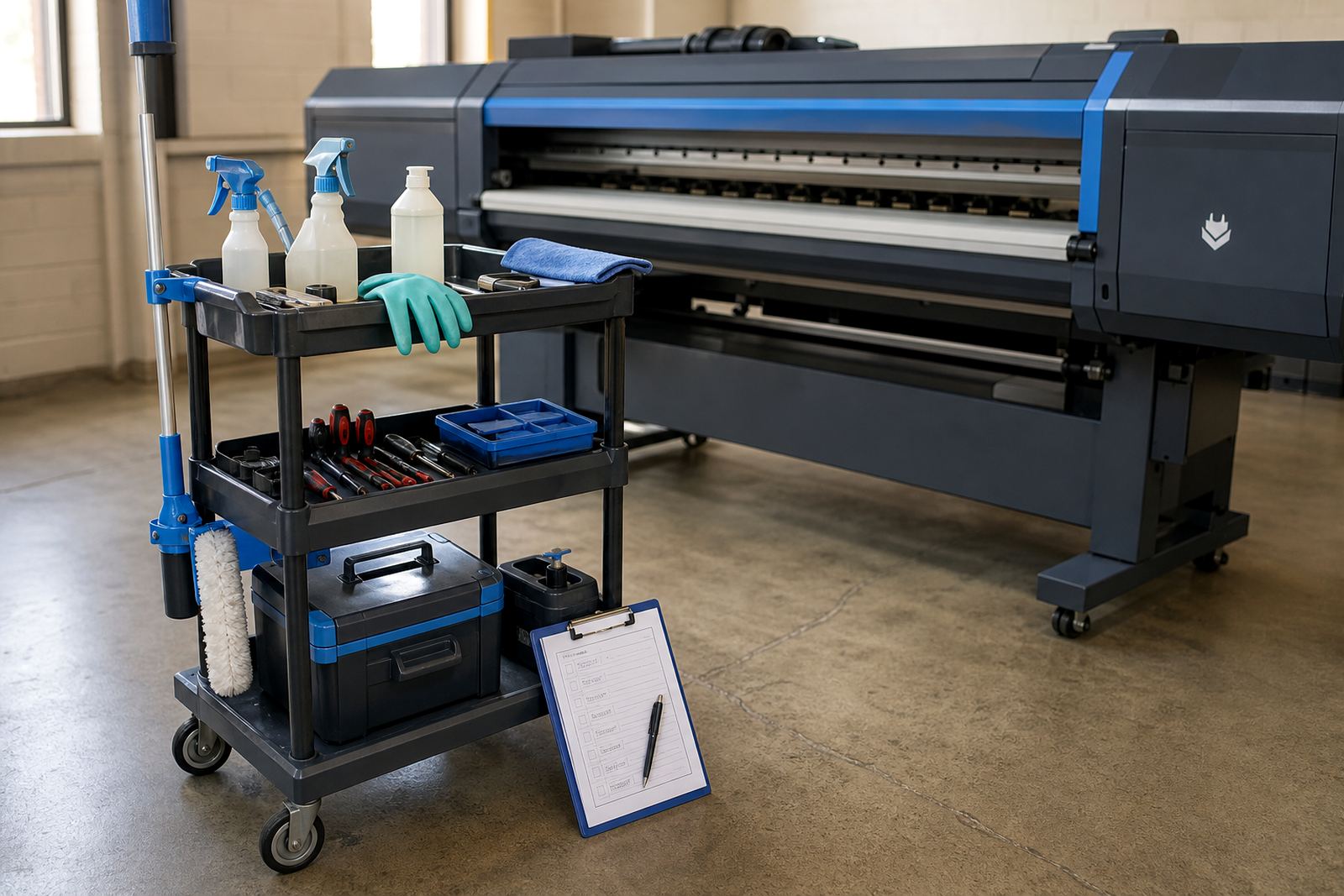
Preventive maintenance is easier to manage than a breakdown, especially when a small shop relies on one or two wide-format printers. Dust, ink residue and worn rollers build up slowly. So do loose connectors, blocked nozzles and unreliable backup files. A steady routine saves time and protects the board and printhead system from avoidable strain.
A maintenance plan does not need to be complicated. It needs to be followed. In busy production rooms, someone should check heads, wipe accessible areas, verify backups and note anything that looks unusual before the next long run starts. That habit is especially useful where the same machine handles production for several clients in one day.
- Inspect print quality at the start of each shift.
- Clean accessible areas around the carriage and feed path.
- Keep a recovery backup for profiles, queues and board settings.
- Replace worn parts before they create colour or feed errors.
- Log faults with the job name and media used.
A small-shop buying list that stays sensible
When a smaller business adds RIP software or board support, the best purchase is the one that matches the work already moving through the shop. Johannesburg, Pretoria and Durban operations often ask for different production habits, but the buying checklist stays similar: stability, readability, repeatable colour and support that fits the crew on site or remote.
Before placing an order, map the printer, the users and the main output types. Then decide whether the shop needs full RIP control, board repair, operator training, or a combination that keeps the machine useful through busy months. A tidy setup can make a two-person shop feel far more organised, and the difference shows in fewer mistakes and cleaner output.
- Printer model and width.
- Current board condition and any fault history.
- Main media types and inks in use.
- Number of operators who touch the workflow.
- Need for remote setup, training or preventive maintenance.