
Start with the machine, not the software
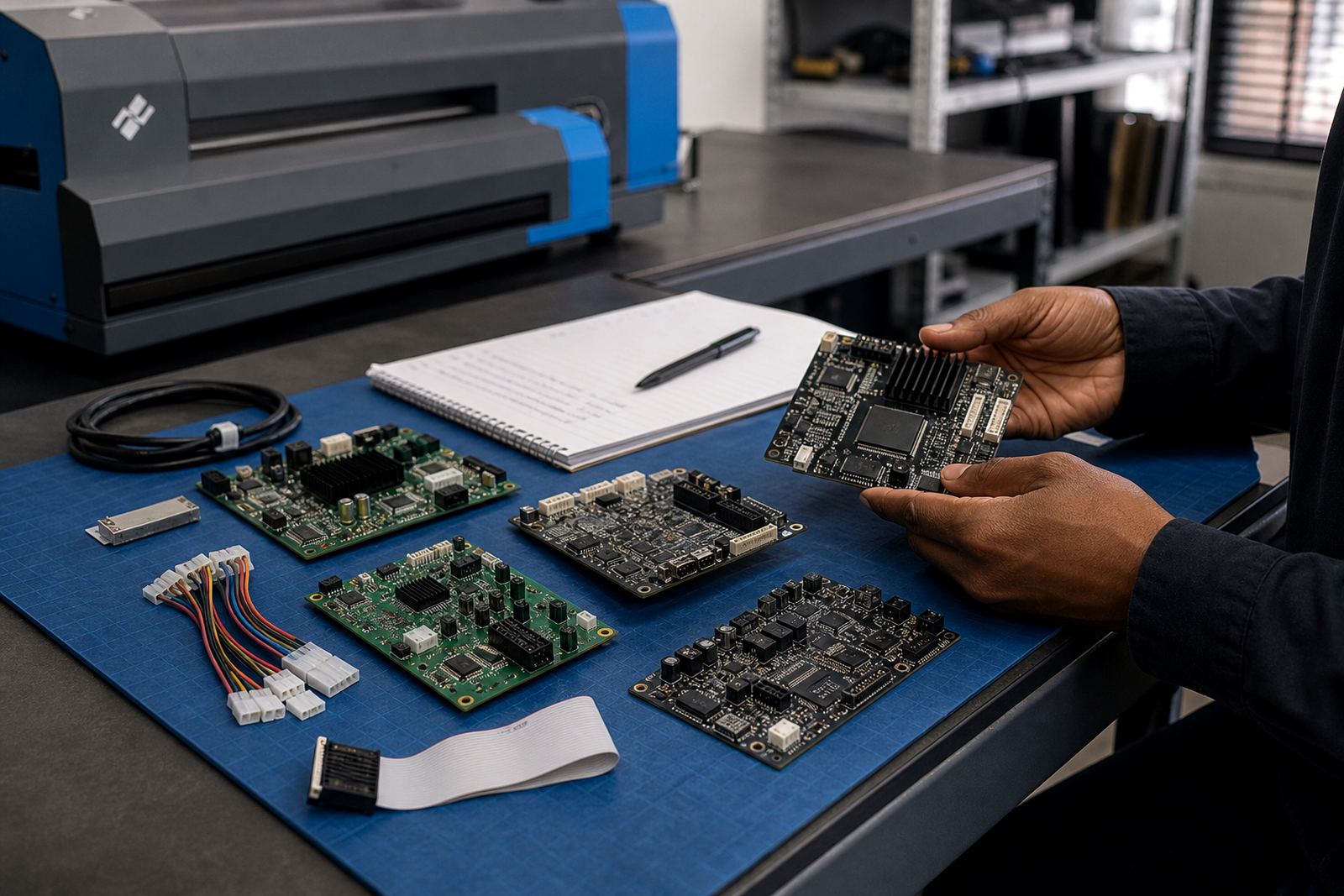
The control board sits at the centre of the print path. It receives the job data, manages the carriage timing and works with the printhead drivers so the machine can fire ink in the right place. If the board is not matched to the printer model, the job may still load but the output can drift, band or lose detail.
Before any board choice is made, the machine details need to be clear. The printer width, the number of printheads, the ink channel layout and the current board type all matter. In many cases the issue is not only the board, it is the way the board talks to the RIP software and the head drivers.
The signs that point to board support
A print shop usually notices board trouble through the output first. Jobs may start but not finish, colours may shift after a few metres, or the machine may need repeated resets before it prints cleanly. In some cases the control panel still looks fine while the board is no longer holding steady communication with the rest of the system.
- Prints stop part way through a queue
- One or more channels fire unevenly
- The machine loses settings after power down
- RIP jobs load but do not send cleanly to the printer
- Colour changes from job to job without an obvious reason
These are not always board faults, but they are strong signs that the full control path needs checking. A board repair may be enough on some machines, while others need a full replacement and setup with the correct profiles and drivers.
Compatibility checks that save wasted work
Wide-format inkjet boards are not all interchangeable. A board that suits one carriage width or head count may not suit another, even if the cabinet size looks similar. The same applies to firmware, printhead driver type and the way the RIP sends passes, layers and colour channels.
It helps to gather a small technical set before anything is ordered or fitted. The most useful details are usually already on the machine, in the current settings or visible during a normal test print.
- Printer model and carriage width
- Number and type of printheads fitted
- Current control board model or revision
- Ink type in use, including CMYK and any light channels
- RIP software version and queue setup
- Any error message, beeping pattern or board fault code
For shops in humid coastal areas like Durban, it is worth checking for corrosion, dust and moisture around connectors too. A board can look fine from the front and still have dirty contacts or heat damage at the back.
How RIP software and board setup work together
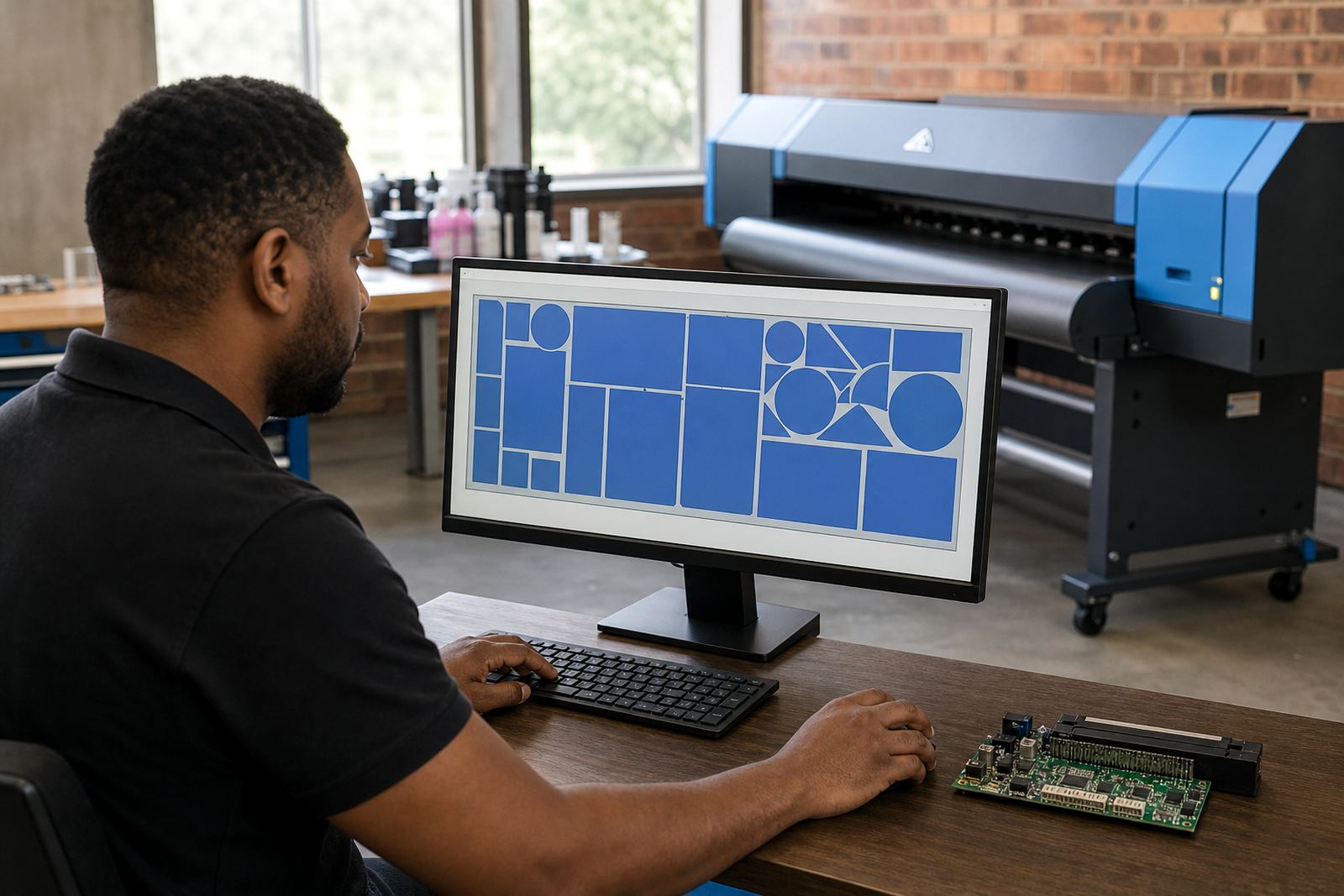
The RIP does more than send a file to print. It builds the job path, sets the colour values, controls nesting and handles how the printer receives the data. If the board and the RIP are not aligned, the machine may print, but not at the consistency a production shop needs.
Colour profiles matter when proofing, banner work and repeat jobs need to match. Queue workflow also matters, especially where several operators send work to the same machine across a busy day. Good setup keeps the board, the drivers and the RIP speaking the same language, which reduces wasted media and reprints.
Printhead driver setup is part of that process. The board needs the right firing sequence, voltage settings and timing for the installed heads. When those values are off, the result is often weak density, missing nozzles or visible banding across long runs.
A practical checklist before board installation
A careful install starts with a clean machine record and ends with a test print that can be read properly. It is better to confirm the basics before the board goes in, rather than discover after installation that a cable or profile was wrong.
- Back up the current RIP queues and profiles
- Confirm the board power path and connector condition
- Check the carriage cable routing for wear or pinch points
- Inspect the printhead drivers for heat marks or loose fittings
- Set the correct colour profile and ink limits
- Run nozzle checks, alignment tests and a short production sample
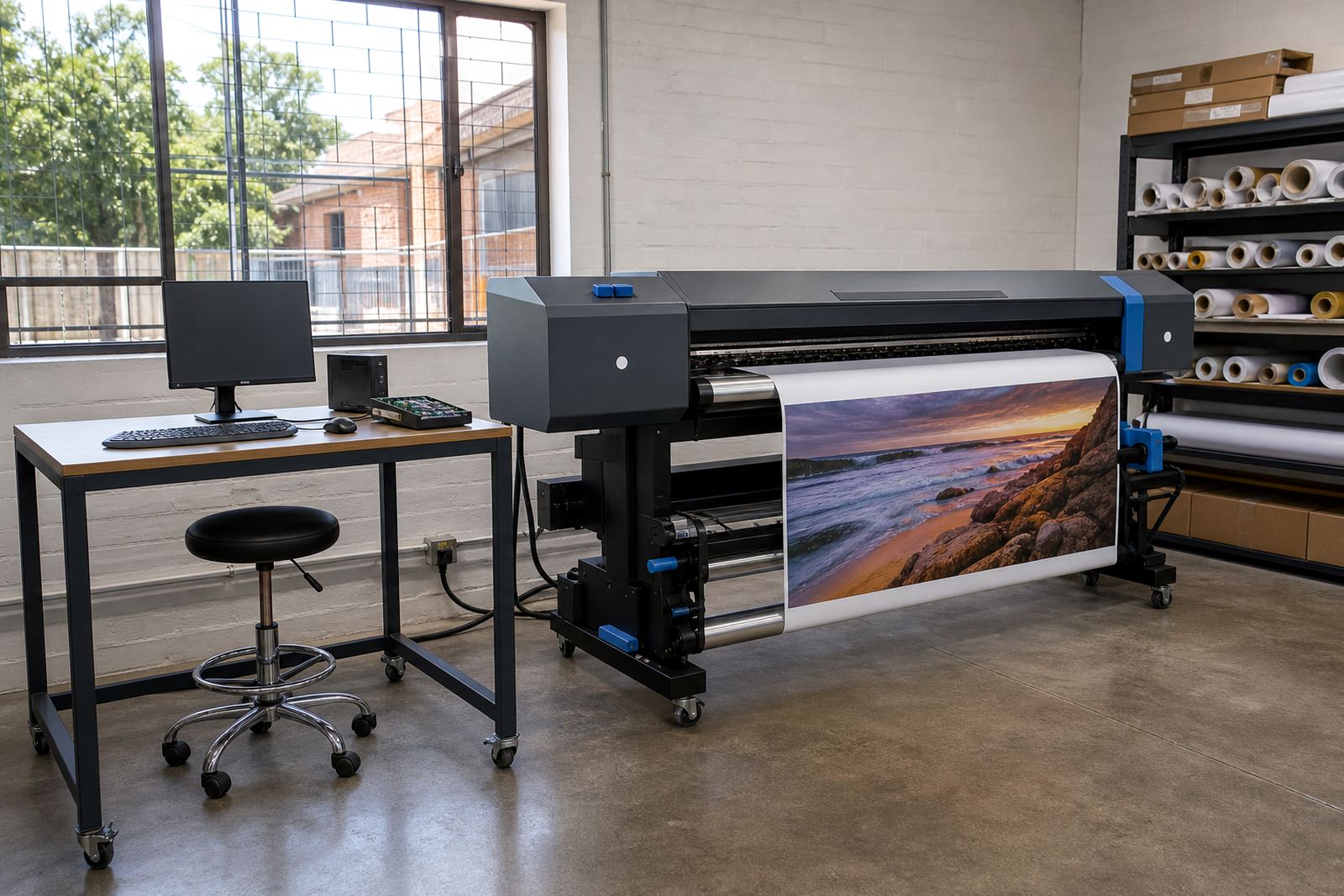
On large-format machines, small setup errors can show up over metres of print very quickly. That is why the board work and the colour work should be checked together, not treated as separate jobs.
Keeping the board steady once production starts
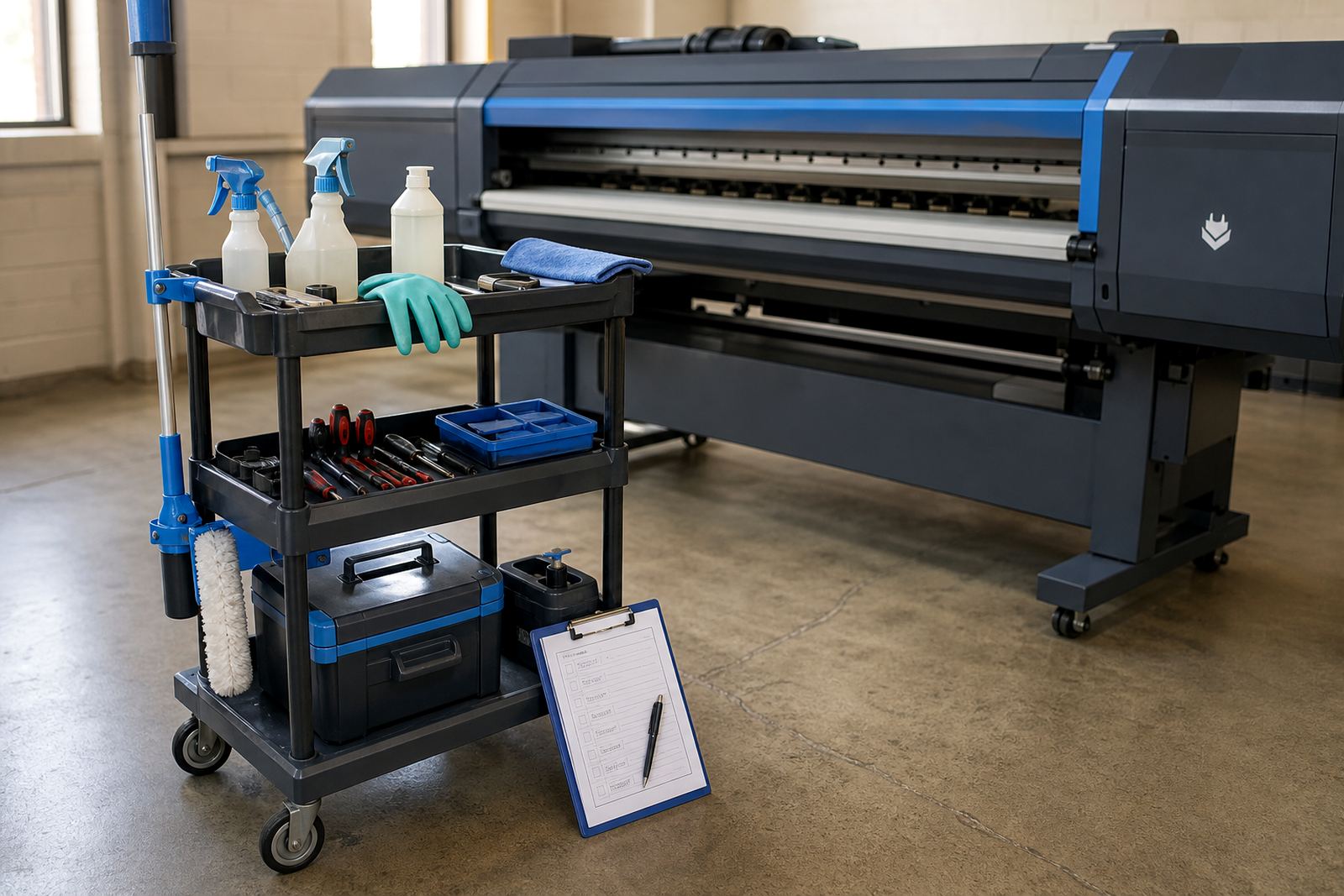
Preventive maintenance helps the board last longer and keeps the printer easier to run. That includes regular cleaning around the cabinet, checking fans and filters, watching for overheating and keeping connectors free of lint and dried ink. In a dusty Gauteng workshop, those checks matter more than many shops expect.
Backup and recovery are also part of sensible board support. If the RIP queue, profiles and machine settings are saved properly, a fault does not have to stop production for long. Operator training helps too, because the people sending the jobs often spot the first warning signs before a full fault shows up.
InkFlow RIP supports print shops in Midrand and across South Africa with RIP installation, board installation, remote setup, fault finding, preventive maintenance and production tuning. Our team works with control boards, printhead drivers, colour workflow and queue design so wide-format inkjet machines can keep moving through everyday production.