
Start With the Print Symptoms, Not the Spare Part
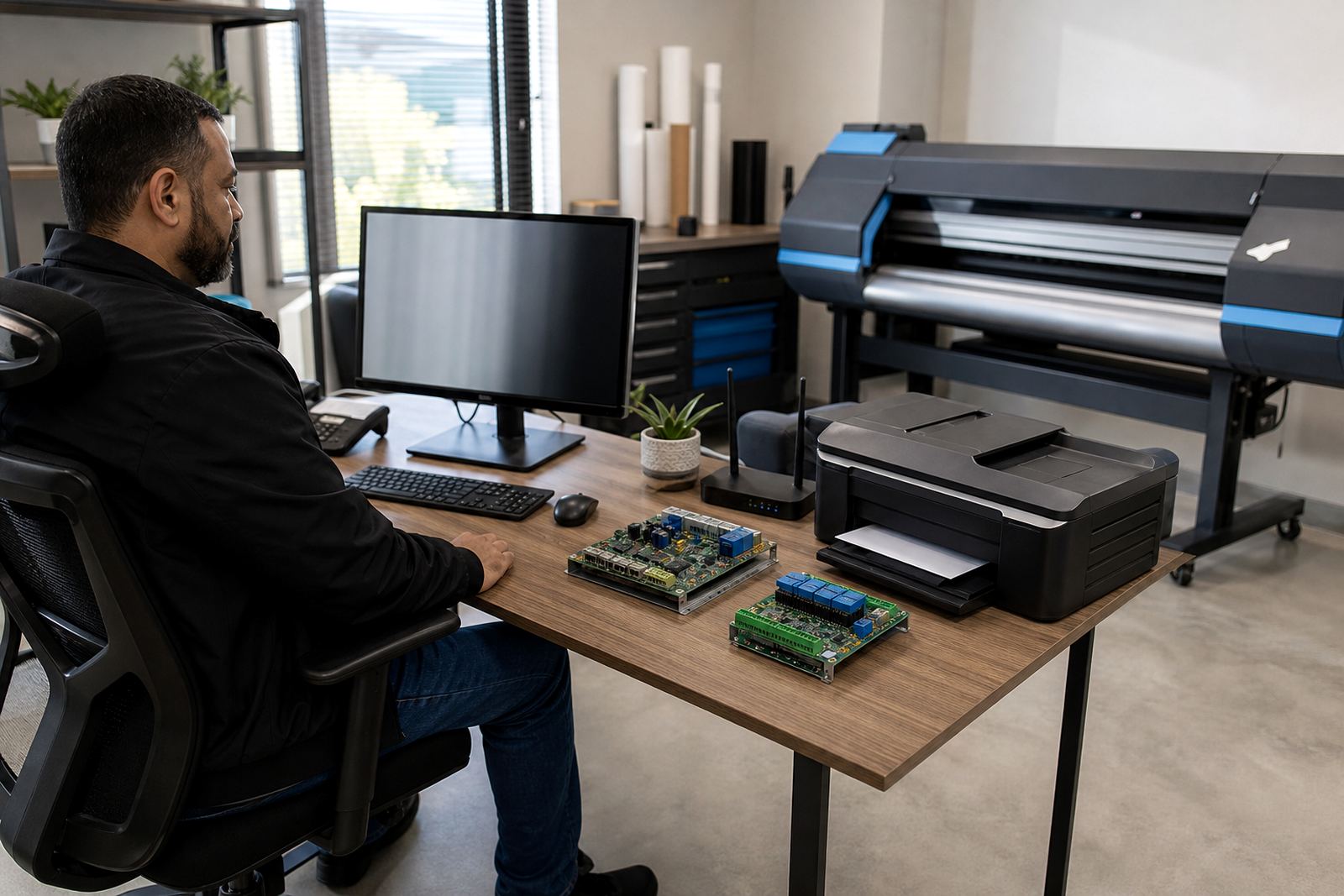
Different board faults leave different marks on a job. A missing colour channel, repeated nozzle drops, carriage hesitation, or a printer that powers on but will not load a queue can point to the board, yet the cause may sit elsewhere. On wide-format inkjet machines, especially in coastal areas like Durban and Cape Town, humidity and dust can change the picture quickly, so look at the full pattern before opening the cabinet.
Make a note of when the fault appears. Does it happen on cold start, after long runs, or only with one file type? If the issue appears after a power cut or during load-shedding recovery, check the board supply path and the connected printhead driver harnesses before assuming the board itself is finished.
Confirm the Board Type and Slot Position
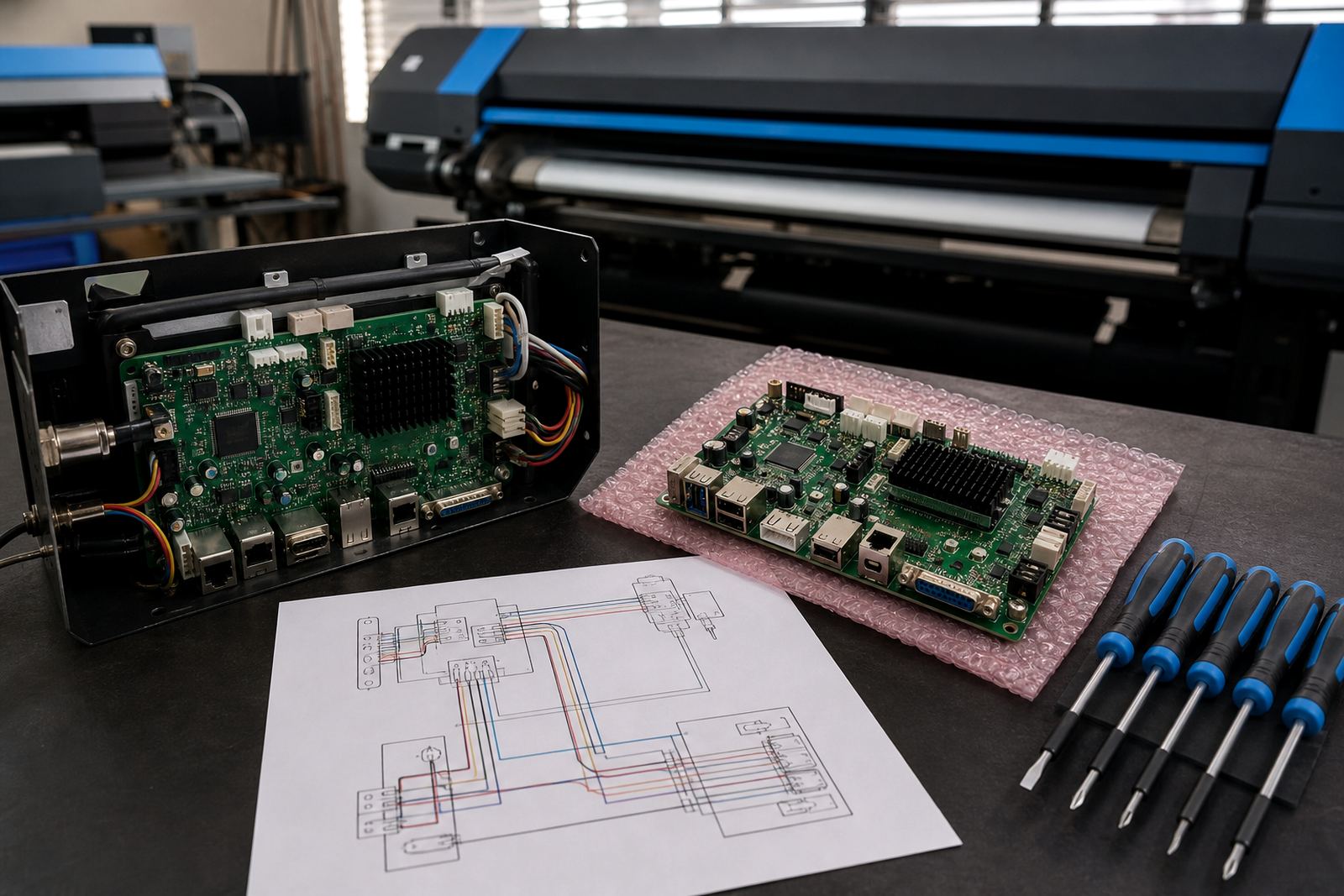
Control boards, printhead driver boards and interface boards are not interchangeable. A board taken from the wrong slot can fit physically and still fail to communicate with the RIP or the carriage system. On some printers the board layout changes between machine sizes, so a board from one model may not suit another even if the connector count looks close.
- Record the board part number and connector positions.
- Check whether the board handles carriage control, ink firing, or main machine logic.
- Photograph every cable before disconnecting it.
- Compare the existing board with the replacement under good light.
If the machine was already running a custom RIP queue setup, keep that information safe. A board swap without the correct device mapping can lead to mixed channels, wrong media settings, or jobs stacking in the wrong order.
Inspect Power, Grounding and Cabling First
Many board failures are not board failures at all. Loose ribbon cables, damaged connectors, scorched terminals or unstable mains supply can trigger the same symptoms as a dead board. In print shops that run long shifts, a cable can work loose from vibration and heat, then fail only when the carriage moves at speed.
Before replacement, switch off fully, isolate the printer and inspect the area for heat marks, corrosion and bent pins. In Gauteng workshops where dust builds up fast, a thin layer of grime can interfere with contact on edge connectors. If you see green oxidation, burnt insulation or a swollen capacitor, do not force the unit back into service.
- Check mains input and internal fuses.
- Look for damaged earth points and loose terminal screws.
- Test the cable path for cuts, kinks or pinched sections.
- Clean only with proper electronic-grade methods, not damp cloths.
Match the RIP Settings Before the Board Goes In
A board replacement should be matched to the software setup that drives it. RIP software, printhead drivers and colour profiles all need to recognise the machine in the same way. If the new board expects a different ink channel map or carriage profile, a good print can still come out wrong. This matters on production work where nesting, white ink layers or multi-pass output are part of the daily workflow.
Save the existing queue settings, media presets and colour profiles before any hardware change. If the old board can still communicate long enough for a backup, capture that data first. A missing profile can lead to dull colour, heavy ink laydown or banding that looks like a hardware fault when the issue sits in the setup.
Replacement Checklist for Workshop and Field Work
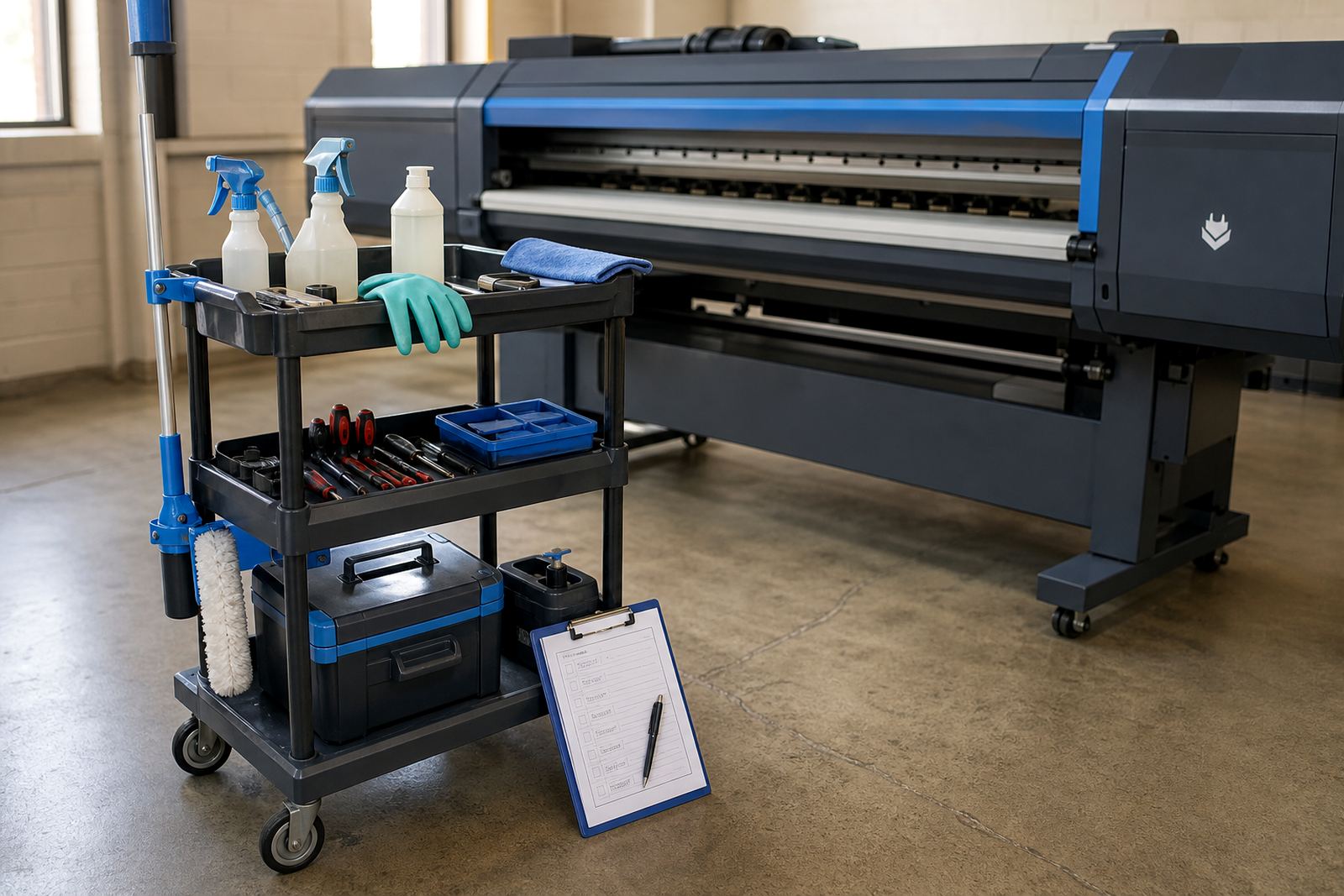
Use a clear checklist before fitting a new board. That keeps the job tidy and reduces the chance of swapping in a part that only repeats the same fault. It also helps when remote support is guiding a shop in Johannesburg, Pretoria, Bloemfontein or the larger Cape and Durban production areas.
- Machine model and serial details noted.
- Current fault recorded with a photo or test print.
- All cables labelled before removal.
- Static precautions used during handling.
- Replacement board checked for connector layout and revision match.
- RIP queues, printhead driver settings and colour data backed up.
- First power-up watched for unusual noise, heat or smoke smell.
If the board powers up but the printer still misfires, move back through the cable path and driver settings. A part that looks correct can still fail to talk to the carriage if one signal line is out of place.
After Fitting, Run a Controlled Test Pattern
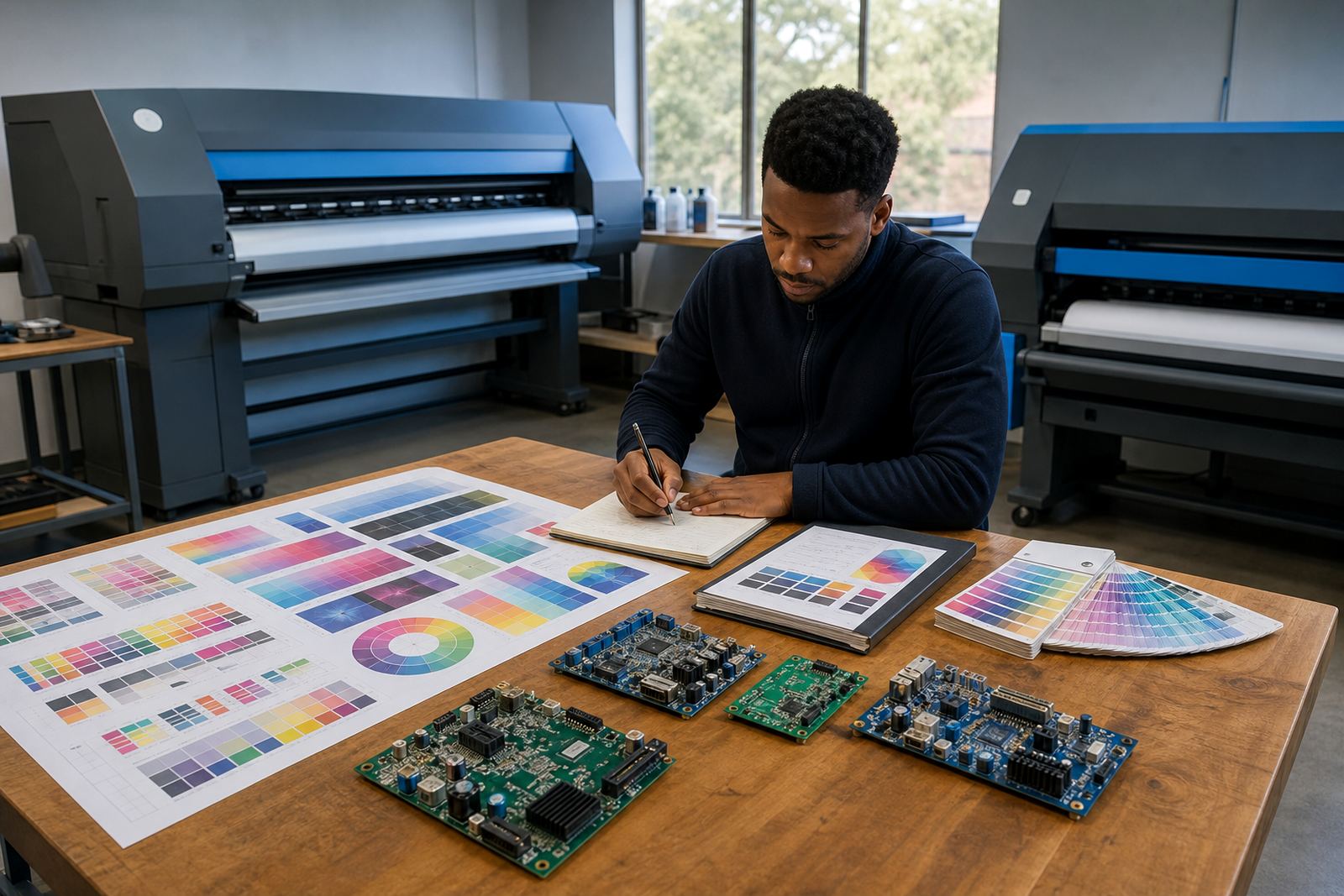
Do not move straight into a production roll. Start with a controlled test pattern, then check each colour channel, registration line and carriage pass. Look for stable ink delivery, even spacing and clean transitions between bands. If the machine uses multiple printhead drivers, test each channel separately where the system allows it.
Record the result against the original symptom. If the new board cures the fault, keep the old one labelled for repair or analysis rather than mixing it into other parts stock. If the symptom remains, the problem may sit in the heads, flex cables, encoder strip or software mapping, not the board itself.
When to Bring in Remote Support
Some board faults are safe to assess in-house, but others need a technician with the right trace tools and firmware knowledge. If the printer shows repeated comms errors, intermittent reset loops, or damaged driver outputs, remote support can help narrow the fault before more parts are disturbed. That matters for shops with packed schedules and tight production windows.
For print shops across Midrand and the wider South African market, a methodical check usually saves time and avoids unnecessary part changes. Our team handles RIP Installation, Board Installation, Remote Setup, Printhead Driver Setup, Fault Finding, Backup and Recovery, and Ongoing Support for wide-format inkjet systems.