
Marks that guide the finishing table
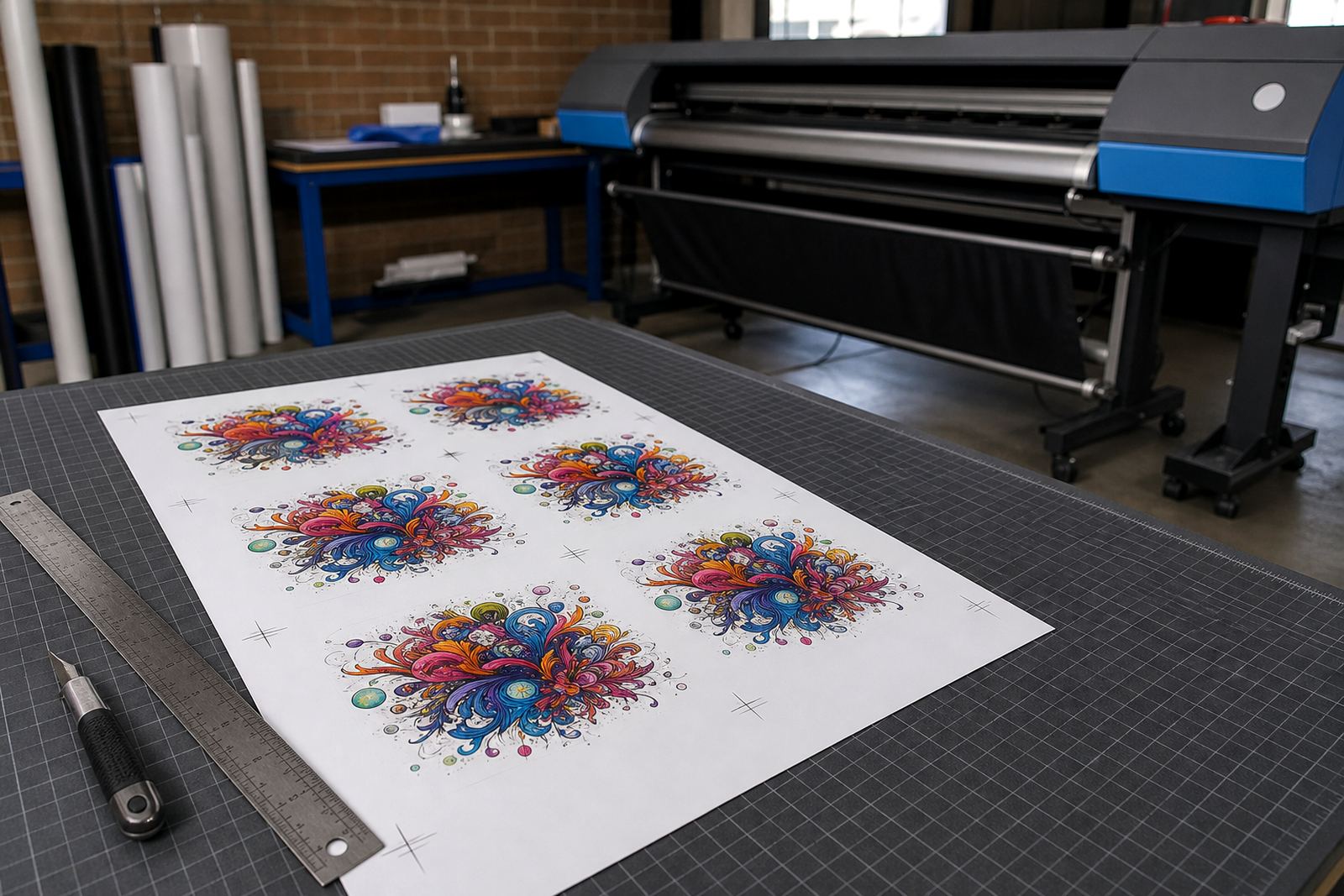
The Cut Mark Module builds trimming marks, crop lines and reference points into the output file before it reaches the printer. In a busy print room that matters, because the finisher is not guessing where the image starts and ends, and the cutter operator has a cleaner guide for guillotines, contour cutters or manual trimming stations.
It is commonly used on posters, decals, exhibition panels, packaging mock-ups, point-of-sale boards and multi-panel graphics. The module can place marks on single jobs or repeated items on a sheet, and it can be set up to work with bleed so the finished edge stays neat after trimming. In practice that means fewer miscuts, less wasted media and less rework at the handover stage.
- Crop marks for edge trimming and square-up work
- Registration marks for aligned finishing passes
- Bleed-aware output for printed jobs that will be trimmed
- Repeat marks for nested or tiled layouts
Sheet sizes, roll widths and output layouts
This module is used with wide-format inkjet workflows, so the useful sizing comes down to the media size, the cutter table and the way jobs are imposed. It can be applied to rolls from narrow production widths through to broader display work, and it can also support sheet-fed layouts where each board or panel needs its own mark set.
For many shops in Johannesburg, Pretoria, Durban, Cape Town and Bloemfontein, the main question is not whether marks can be added, but how they should be placed. Some teams need corner marks only, while others need paired marks along the length of the job for accurate re-trimming after lamination. The module can be configured to match standard shop layouts or custom panel sizes without forcing the operator to rebuild every file by hand.
- Works with sheet-fed and roll-fed print workflows
- Supports single-piece, tiled and nested layouts
- Can place marks at corners, edges or repeated positions
- Useful where artwork needs bleed and trim allowance
Where the module suits best in production
The Cut Mark Module suits print shops that handle finishing in-house, as well as production facilities that pass work from the RIP station to a separate cutting or trimming team. It is especially helpful where output must line up after lamination, mounting or panel joining, because the marks stay consistent from file to file when the workflow is set correctly.
Graphic designers use it when they want the printed result to match the approved layout closely. Trade printers use it when mixed jobs land on the queue and the finishing stage must move without confusion. Large-format shops use it for repeat work such as retail signage, seasonal displays and short-run promotional material, where alignment across batches matters and a small drift can spoil the whole set.
- Print rooms with separate cutting and finishing steps
- Shops running regular short-run promotional work
- Teams that tile large graphics across multiple panels
- Operations that laminate before final trim
Fitting the module into an active RIP setup
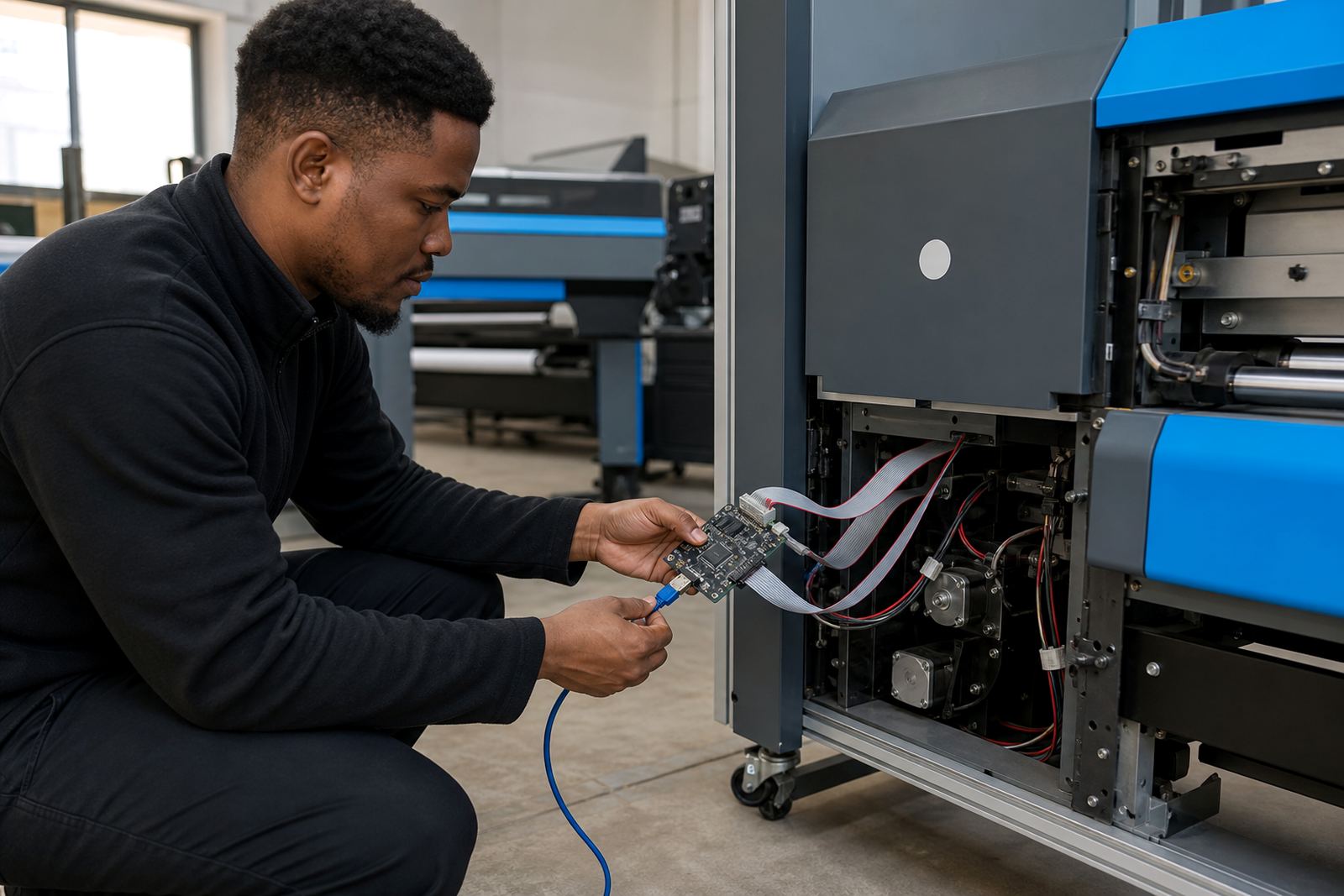
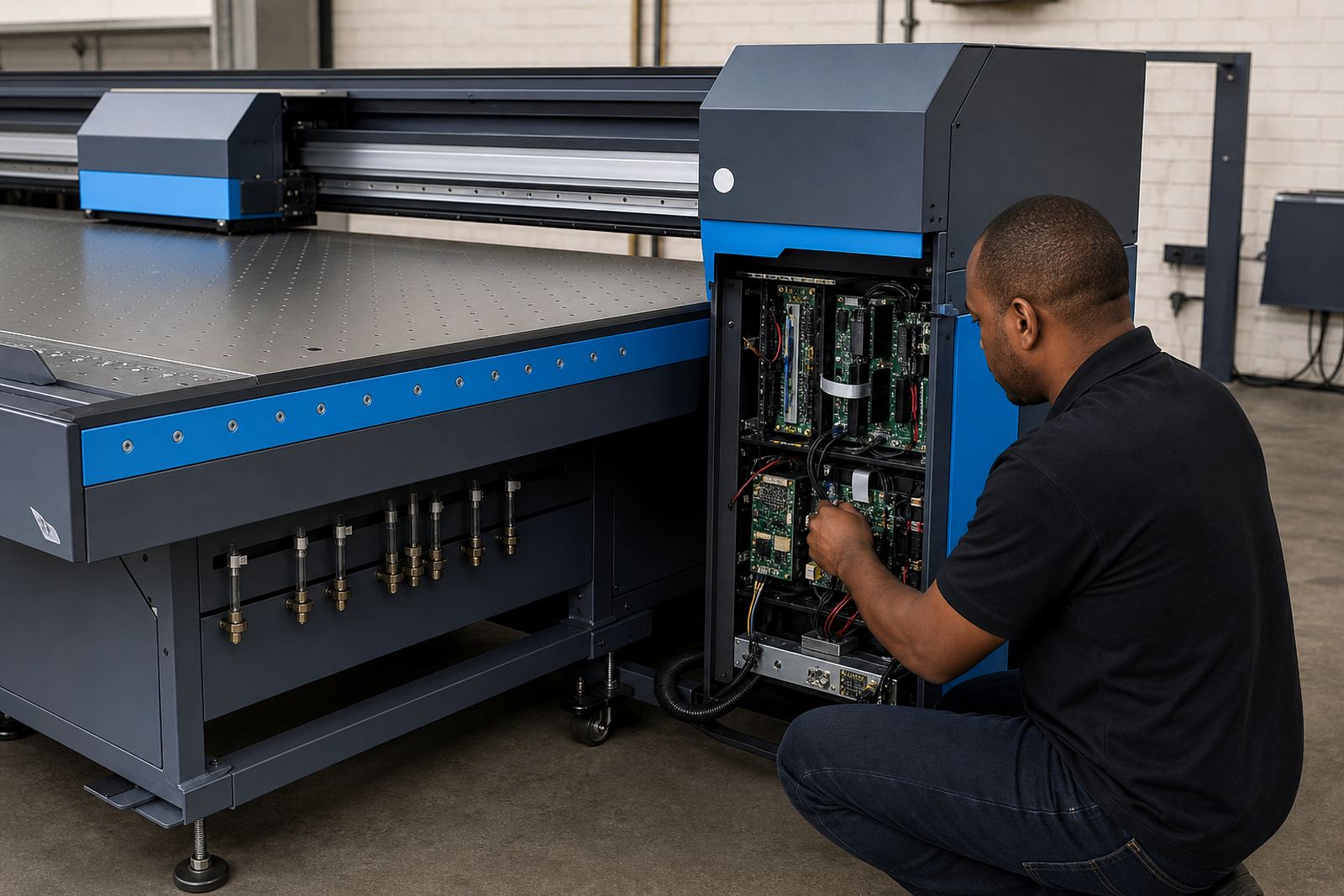
Installation normally starts at the RIP workstation, then the output template and mark placement settings are matched to the printer queue. Where the shop already uses queue workflow design, the module can be folded into that structure so the marks sit in the right place without changing the rest of the production path. On a live site, that means the technician checks the printer board communication, job routing and the printhead driver settings before final handover.
Remote setup is often enough for shops that already have stable connectivity and a working RIP station in place. Where a board installation or printhead driver setup is also needed, the cut mark settings are tested together with colour output and nesting so the finished job carries the correct marks and still prints cleanly. If a shop uses more than one printer, each queue can be given its own finishing profile, which keeps the workflow tidy when jobs are moving fast.
- RIP workstation configuration and queue setup
- Placement testing against cutter and trimming methods
- Can be linked with nesting and colour workflow settings
- Useful for multi-printer sites with separate finishing needs
Care for marks, files and operator use
The module itself needs very little physical care, but the workflow around it does. Operators should keep template names clear, avoid overlapping mark areas and check that trimming margins are still valid after file changes. When artwork is updated, the mark positions should be reviewed as part of the normal proofing stage so the finisher does not inherit an old layout by mistake.
In humid coastal conditions, especially around Durban and Cape Town, printed sheets can shift slightly if they are handled too early or stacked badly, so a neat workflow matters. Boards and rolls should be stored flat where possible, and the finishing team should keep a consistent order for cutting, especially where double-sided work or panel sets are involved. A clean operator note saves time later, and it avoids the usual back-and-forth over which edge is the true cut line.
- Keep template names consistent across repeat jobs
- Review mark positions after artwork revisions
- Allow printed media to settle before trimming
- Store boards and rolls flat where practical
Details to confirm before the order is loaded
For the cleanest setup, the order should confirm the printer model family, RIP version, media widths, finishing method and the exact style of marks required. If the shop uses a guillotine, a contour cutter or hand trimming, that changes the mark placement. It also helps to note whether the job is sheet-fed, roll-fed or tiled across several panels, because each case needs a slightly different output pattern.
We also check whether the workflow needs nesting, lamination allowance, board trimming or a separate operator stage after printing. Where the site runs multiple queues, it is useful to specify which printer should carry the module and which jobs should keep their existing layout. That keeps the setup practical for a Midrand base serving print shops across South Africa, from East Rand production rooms to larger operations in the main metros.
- Printer model, media width and RIP version
- Cutting method and finishing stage in use
- Sheet, roll or tiled production format
- Need for bleed, nesting or lamination allowance
Key facts
| Module type | RIP finishing feature for print mark placement |
|---|---|
| Main use | Registration marks for trimming and downstream finishing |
| Compatible workflow | Wide-format inkjet sheet, roll and tiled output |
| Typical setup | RIP queue configuration with printer board and driver checks |
| Options | Crop marks, corner marks, repeat marks and bleed-aware layouts |
| Support area | Midrand, Sandton, Tshwane, Durban, Cape Town and Bloemfontein |